
Setting up an aftermarket head-up display (HUD) and a mobile phone holder on a modern BYD dashboard requires balancing digital convenience with physical safety. BYD vehicles feature distinct interior designs, including soft-touch synthetic leather dashboards, unique air vent configurations, and large, rotating central touchscreen displays. To prevent a chaotic tangle of wires and overlapping screens, you must plan your layout systematically.
By prioritizing clear sightlines, respecting airbag deployment zones, and utilizing smart cable routing techniques, you can create a clean, professional dual-device setup that enhances your driving experience. This approach ensures both devices remain fully functional without compromising safety or interior aesthetics.
Assess Your Dashboard Layout and Safety Boundaries
Focus on safety first before purchasing or installing any accessories. Airbags are critical safety components that deploy with immense force. The driver’s airbag is housed in the steering wheel hub, but the passenger airbag occupies a large portion of the passenger-side dashboard. Additionally, side curtain airbags may deploy from the A-pillars. Consult your BYD owner’s manual to identify the exact deployment zones, and establish a strict no-mount zone across these seams. In a collision, a mounted device in an airbag path can become a dangerous projectile.
Products mentioned in this guide
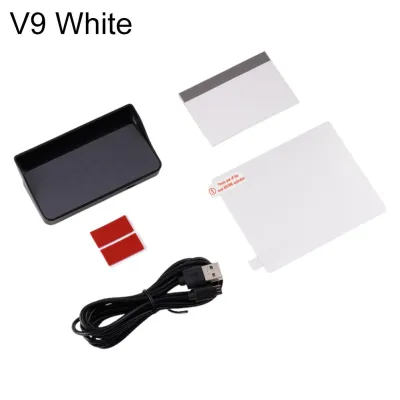
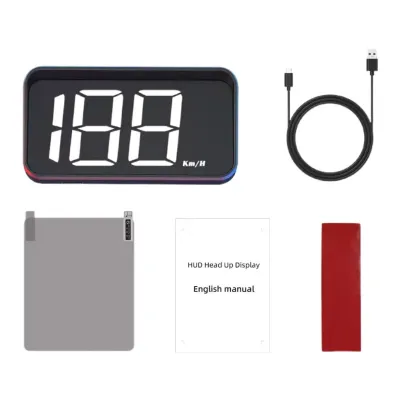
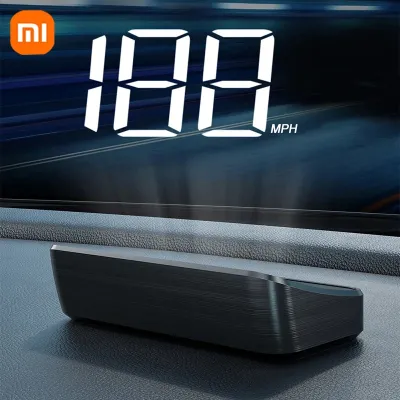
Prices are valid at publication and may change. Please refer to the product page for the latest price.
Next, analyze your primary driving sightline. Sit in your normal driving position and adjust your seat to your preferred height. Your view of the road and the factory instrument cluster—which is often a compact screen mounted directly on the steering column in models like the Atto 3 or Dolphin—must remain completely unobstructed. The aftermarket HUD should sit directly in your forward line of sight but low enough that it does not block your view of the hood, oncoming traffic, or the road ahead.
Inspect the dashboard materials carefully. Many BYD models use premium, textured, or soft-touch synthetic materials on the upper dashboard. Standard suction cups or strong chemical adhesives can permanently stretch, discolor, or tear these delicate surfaces, especially under intense tropical heat and sunlight. Identify stable, hard plastic trim pieces or glass surfaces, such as the small quarter windows or the windshield itself, as alternative mounting points if you want to avoid adhesive damage to the soft dashboard wrap. Also, locate any built-in sensors, such as the automatic headlight light sensor or solar radiation sensor typically positioned near the base of the windshield, and ensure your devices do not cover them.
Select Optimal Mounting Positions for Both Devices
Achieving a clutter-free look requires separating the physical zones of your HUD and phone mount. If they are placed too close together, they will compete for your visual attention and physically crowd the space behind the steering wheel.

Positioning the Head-Up Display
The HUD unit needs a flat, stable foundation directly in front of the driver. In many BYD vehicles, the area immediately behind the steering column or above the compact instrument binnacle offers a suitable flat surface. Place the unit where its projection aligns naturally with your forward gaze.
Ensure the projection path to the windshield is clear. If your HUD uses a built-in combiner glass, which is a small clear plastic screen attached to the unit, verify that the screen can fold open fully without hitting the curved cowl of the dashboard or the instrument cluster.
Before securing the HUD, adjust your steering wheel’s tilt and telescopic settings through its full range of motion. The steering column and the wheel rim must not pinch the HUD unit or its power cable at any point during these adjustments.
Positioning the Phone Mount
Choosing the right phone mount depends heavily on your BYD’s specific interior layout. Air vent mounts are popular, but you must verify that your phone’s weight will not damage the unique, stylized vent blades found in models like the Atto 3 or Dolphin. If the vent blades feel flexible or delicate, consider a dashboard-mounted adhesive base or a windshield suction mount instead.
Position the phone mount lower or further to the side than the HUD. This physical separation prevents the phone screen from overlapping the HUD’s projection or combiner glass, allowing you to glance at either screen independently without visual confusion.
Crucially, ensure the phone and its mounting arm do not block your view of the central infotainment screen, the physical climate control toggles, or the hazard light button. The hazard button must always remain instantly accessible to both the driver and front passenger.
Install and Align Both Devices for Ergonomic Viewing
Preparation is key to a secure, long-lasting installation. Start by cleaning the selected mounting areas on your dashboard or windshield. Use only a mild, label-authorized automotive interior cleaner or a simple isopropyl alcohol wipe on hard plastic or glass surfaces. Avoid applying harsh chemicals, silicones, or leather conditioners to the mounting zone, as these leave a slippery residue that prevents adhesives and suction cups from bonding. Allow the surface to dry completely.
Install the HUD first. Because the HUD’s placement is constrained by the physics of light projection and windshield angles, its positioning is far less flexible than a phone mount’s adjustable arm. Place the HUD on its non-slip mat or secure it with its included adhesive pad. If using an adhesive, press firmly for the manufacturer-recommended duration to ensure a complete bond.
Next, install the phone mount. If you are using an adhesive-backed base, apply it to a flat, hard plastic surface and let the adhesive cure, typically 24 hours, before attaching the weight of your phone. Once the base is secure, attach the articulating arm and mount your phone. Adjust the arm so the phone sits slightly below your primary line of sight, angled directly toward your face.
Sit in your normal driving posture and perform an ergonomic check. Look straight ahead at the road. Your HUD should be visible in your lower peripheral vision, providing speed and navigation data without requiring you to look down. Your phone should be accessible with a quick glance to the side, minimizing the time your eyes are off the road. Adjust the angles of both devices until you can view them comfortably without tilting your head or straining your neck.
Route and Conceal Cables for a Clutter-Free Console
A dual-device setup requires two separate power sources, which can easily lead to a messy tangle of wires draping over your center console. To maintain a clean aesthetic, plan a hidden cable path before plugging anything in. Most aftermarket HUDs and phone chargers use USB cables that can be routed along the natural panel gaps of your BYD’s dashboard.
Begin routing from the devices downward. Run the HUD’s power cable along the crevice where the dashboard meets the windshield, guiding it toward the driver’s side A-pillar. Use a plastic trim removal tool to gently tuck the wire into the rubber weatherstripping or the panel gaps along the side of the dashboard. Never force cables into tight gaps with metal tools, as this can cut the wire insulation or damage the interior panels.
Route the phone charger cable similarly, running it down the side of the center console or behind the central screen assembly. Use small, adhesive-backed cable clips to secure the wires along their path, keeping them tight against the panels. If there is excess cable length, bundle it neatly with zip ties and tuck it under the steering column cover or inside the lower console storage area.
Double-check that no cables drape across or interfere with critical controls. Wires must never hang near the steering wheel, the gear selector, the pedals, or the cup holders. A loose cable can easily snag on your hand while steering or shifting, creating an immediate driving hazard.
Verify Visibility, Glare, and Driving Safety
Before driving, conduct a comprehensive safety and visibility check under different lighting conditions. Park your vehicle in direct sunlight to check for glare. If the HUD’s projection is washed out, adjust its brightness settings or install the reflective film that came with the unit. Conversely, during night driving, a HUD that is too bright can cause distracting double reflections on the windshield or strain your eyes. Use the HUD’s auto-dimming feature or manually lower the brightness for night trips.
Check the phone screen for reflections. Angle the phone mount slightly away from the side windows and windshield to prevent the screen’s light from casting distracting reflections onto the glass at night. Ensure the phone’s auto-brightness setting is enabled so it dims automatically in low-light environments.
Verify that neither device casts reflections onto your BYD’s central infotainment screen. The large central display is vital for navigation and vehicle settings; any glare from your phone or HUD that obscures this screen can be highly distracting.
Finally, take a short test drive in a safe, quiet area. Pay close attention to your field of view. If you find yourself stretching your neck to see past the phone mount, or if the HUD blocks your view of pedestrians or curb lines at intersections, stop the vehicle in a safe location and adjust the mounting positions immediately. Driving safety must always take priority over accessory placement.
Frequently Asked Questions (FAQ)
Can I project the HUD directly onto the BYD windshield?
Standard automotive windshields consist of multiple layers of glass laminated together. When you project a standard HUD image onto a regular windshield, the light reflects off both the inner and outer glass surfaces, creating a distracting double image or ghosting effect. Unless your specific BYD model came from the factory with a specialized, wedge-shaped acoustic windshield designed for HUD projection, you will likely experience this double reflection. To resolve this, use the clear reflective combiner glass included with your aftermarket HUD, or carefully apply the small square of reflective film, usually provided in the HUD box, directly to the inside of your windshield where the projection lands.
Will the phone mount block the central infotainment screen?
One of the most distinctive features of modern BYD vehicles is the large central infotainment screen that can rotate between portrait and landscape modes. When choosing a location for your phone mount, you must account for this rotation. Before permanently adhering or clamping your phone mount, manually rotate the central screen through its full range of motion. Ensure that the phone, the mount’s articulating arm, and any connected charging cables do not physically obstruct or collide with the central screen in either orientation. Placing the phone mount on the driver’s side air vent or using a windshield suction mount to the far side is often the most effective way to keep the central screen’s rotation path completely clear.

Community discussion
Share your experience or ask a question. Comments are reviewed before publication.