
Transitioning from a cluttered wired setup to a seamless wireless experience in your vehicle requires matching your smartphone’s operating system with your car’s existing infotainment capabilities. Not all adapters are created equal; some simply bridge the wireless gap for native interfaces, while others introduce entirely independent operating systems to your dashboard. By systematically verifying your car’s factory setup and understanding your navigation needs, you can select an adapter that ensures stable, lag-free maps and media on every drive.
Quick Guide: Matching Your Car and Phone to the Right Adapter Type
To find the right adapter, you must first identify your primary smartphone and the current capabilities of your car’s built-in screen. The selection process generally falls into three distinct pathways based on your hardware setup and what you want to achieve on your dashboard.
Converting Wired CarPlay to Wireless CarPlay If you are an iPhone user and your vehicle already has factory-installed wired CarPlay, your primary goal is to eliminate the hassle of plugging in your phone every time you step into the cabin. For this scenario, a dedicated wireless CarPlay adapter is the most efficient choice. These devices focus solely on converting the wired iOS signal to a wireless one, preserving the native Apple interface, steering wheel controls, and Siri integration without adding unnecessary software layers.
Products mentioned in this guide
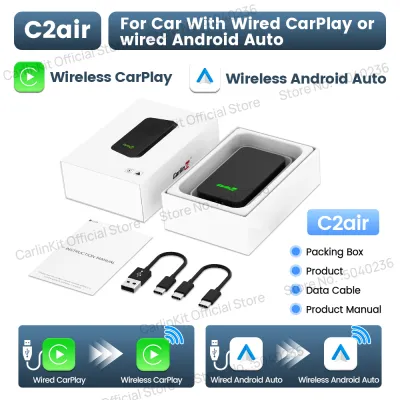
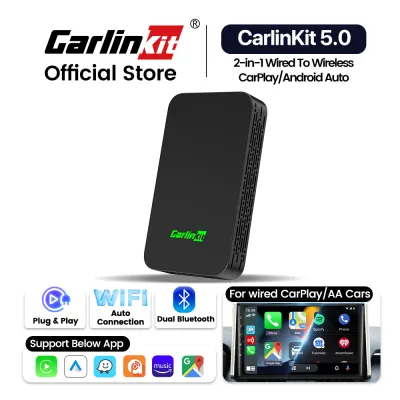
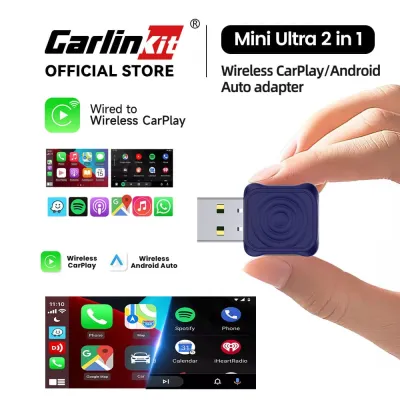
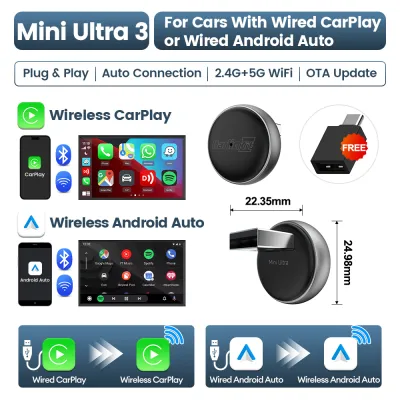
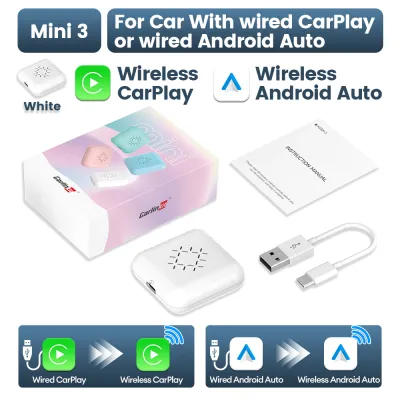
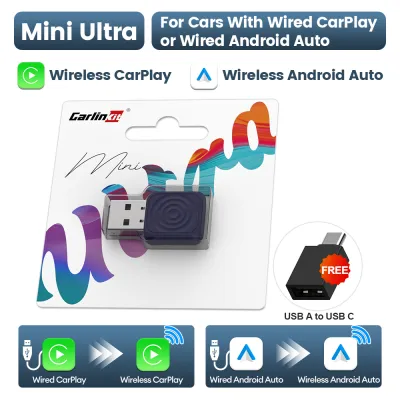
![[ SG ] CarlinKit Ai Box Wireless Carplay Adapter Android 13 8-Core 8+128G Built-in GPS Wireless Android Auto Apple Carplay Dongle Car Link Kit Tbox LED 车连易](https://img.lazcdn.com/g/ff/kf/S46cdc75f9378480db20ee29af4e8e255s.jpg_400x400q80.jpg_.webp)
Prices are valid at publication and may change. Please refer to the product page for the latest price.
Converting Wired Android Auto to Wireless Android Auto If you carry an Android smartphone and your car features factory wired Android Auto, you need an adapter designed specifically for the Android ecosystem. Some adapters are dedicated solely to Android Auto, while others offer dual-compatibility, allowing both Android and iOS devices to connect wirelessly. Choosing a dedicated or highly compatible dual-protocol adapter ensures that Google Assistant, Google Maps, and your preferred Android media apps project smoothly onto your screen.
Adding Smart Features and Apps to Basic Screens For drivers who want more than just basic phone projection, or those who wish to run standalone applications like video streaming, web browsers, or independent navigation directly on the car’s screen, an AI Box or Multimedia Box is the correct path. These advanced adapters plug into your car’s wired CarPlay port but run an independent Android operating system. This setup allows you to download apps directly to the adapter, effectively turning your dashboard into a smart tablet, even if your phone is not actively connected.
Understanding Carlinkit Adapter Categories
To make an informed purchase, it is essential to understand how different Carlinkit adapter categories function under the hood. Each category serves a specific user profile and relies on different hardware architectures to deliver navigation and media to your screen.

Wireless CarPlay and Android Auto Dongles These are the most common and straightforward adapters available. They act as a simple wireless bridge between your smartphone and the car’s infotainment system. When you plug the dongle into your car’s USB port, it uses Bluetooth to establish an initial handshake with your phone and then switches to a local Wi-Fi connection to transmit data. Because these dongles rely entirely on your phone’s processor to run apps and render maps, they require very little processing power themselves, resulting in lower power consumption and minimal heat generation.
AI Boxes (Multimedia Boxes) An AI Box is a self-contained computer that runs a full version of the Android operating system. When plugged into a vehicle’s wired CarPlay port, the car’s infotainment system recognizes the box as an iPhone and displays its interface. Instead of projecting your phone’s screen, the AI Box displays its own customizable Android home screen. This allows you to run apps directly on the dashboard, utilize split-screen multitasking, and access media platforms that are typically restricted on standard CarPlay or Android Auto.
Standalone Android T-Boxes Standalone T-Boxes represent the premium tier of multimedia adapters. In addition to running an independent Android operating system, these devices feature built-in GPS modules and physical slots for SIM cards and microSD cards. By inserting a local SIM card, the T-Box gains independent cellular connectivity, allowing it to run real-time navigation apps, stream high-definition media, and receive over-the-air updates without drawing data from your smartphone’s hotspot. This is highly beneficial for drivers who prefer a dedicated, always-on smart system in their vehicle.
Step-by-Step Compatibility Verification
Before purchasing any adapter, you must perform a series of compatibility checks to ensure the hardware will function correctly with your specific vehicle and smartphone. Skipping these steps can lead to connection failures or unstable performance.
Step 1: Verify Factory Wired Capabilities The most critical prerequisite for almost all Carlinkit adapters is that your vehicle must already possess a factory-installed, wired CarPlay or Android Auto system. These adapters cannot add smart connectivity to a basic radio screen that lacks these native protocols. To verify this, plug your smartphone directly into your car’s data USB port using an official, high-quality cable. If the CarPlay or Android Auto interface launches automatically on your screen, your system is compatible with a wireless adapter.
Step 2: Check Smartphone Hardware and Software Your smartphone must meet specific hardware and software standards to support wireless projection. For wireless CarPlay, your iPhone should run iOS 9 or newer, though newer iOS versions are highly recommended for optimal stability. For wireless Android Auto, your phone must support 5GHz Wi-Fi and typically needs to run Android 11 or newer. Older Android versions may not support the wireless protocol, even if they work perfectly fine over a wired connection.
Step 3: Identify Vehicle Exceptions and Quirks Certain vehicle manufacturers use non-standard infotainment architectures that can cause compatibility issues. For example, many BMW and Mini Cooper models use wireless-only CarPlay systems from the factory, meaning they do not have the physical wired CarPlay architecture that these adapters plug into. Additionally, some models from brands like Nissan, Mitsubishi, or specific aftermarket head units have unique USB power delivery profiles or proprietary software handshakes that may require specialized adapter firmware or specific hardware models.
Step 4: Consult Official Compatibility Databases Always cross-reference your vehicle’s make, model, and production year with the manufacturer’s official compatibility lists before finalizing your choice. If your vehicle has a unique trim level or an uncommon infotainment package, contact the manufacturer’s customer support team directly. Providing them with your vehicle details and a photo of your dashboard interface can help prevent compatibility issues and ensure you receive the correct firmware recommendations.
Key Performance and Usability Features to Compare
Once you have narrowed down your search to a specific category of adapter, you should compare key performance metrics to ensure the device fits your daily driving habits and expectations.
Connection Stability and Chip Architecture The internal processing power of the adapter directly influences how quickly maps render and how smoothly audio plays. Simple wireless dongles require efficient dual-band Wi-Fi chips (supporting both 2.4GHz and 5GHz frequencies) to maintain a stable connection in areas with high wireless interference, such as dense urban centers or near electronic toll gantries. For AI Boxes, look for multi-core processors and sufficient onboard RAM to ensure that running resource-heavy navigation apps alongside media playback does not cause system lag or crashes.
Boot-up Time and Auto-Reconnection A high-quality adapter should connect quickly and seamlessly. Ideally, the adapter should power on as soon as you unlock your car or turn the ignition, initiating the wireless handshake immediately. Compare user feedback regarding auto-reconnection reliability; the adapter should consistently pair with your phone within seconds of starting the engine, allowing you to drive off with your navigation already active on the screen without manual intervention.
Audio Routing and Vehicle Control Integration The adapter must integrate perfectly with your car’s physical controls and audio system. Verify that the adapter supports your steering wheel buttons for volume adjustment, track skipping, and activating voice assistants. It should also utilize your car’s native microphone for hands-free phone calls and voice commands, ensuring clear audio quality. Proper audio mixing is equally important, allowing navigation prompts to temporarily lower the volume of your music rather than cutting the audio feed entirely.
Firmware Update Mechanisms As smartphone operating systems receive regular updates, your adapter’s firmware must keep pace to maintain compatibility. Look for adapters that offer convenient over-the-air (OTA) updates. This process typically involves connecting your phone to the adapter’s Wi-Fi network, accessing a specific IP address in your mobile browser, and downloading updates directly. Avoid adapters that require complex manual updates via USB flash drives unless absolutely necessary, as this process is more prone to user error.
Installation, Setup, and Basic Troubleshooting
Setting up your wireless adapter is generally straightforward, but following the correct sequence is vital to establishing a secure and lasting connection.
Standard Physical Connection and Pairing Begin by plugging the adapter into the specific USB port in your car designated for data transfer, which is often marked with a smartphone icon. Turn on both Bluetooth and Wi-Fi on your smartphone. Locate the adapter’s Bluetooth name in your phone’s settings, initiate the pairing process, and accept any prompts on your phone screen to enable CarPlay or Android Auto. Once the initial Bluetooth handshake is complete, the adapter will automatically transition the data stream to a secure Wi-Fi connection.
Optimizing Audio and Display Settings If you notice that navigation voice prompts are too quiet or that the screen resolution looks stretched, you can adjust these settings through the adapter’s internal configuration menu. Connect your phone to the adapter’s Wi-Fi network and enter the default IP address (usually found in the user manual) into your web browser. From this portal, you can adjust audio delay settings, modify screen resolution outputs, and fine-tune the microphone gain to match your vehicle’s acoustics.
Basic Troubleshooting Steps If you experience connection drops or pairing failures, start by clearing your phone’s Bluetooth and Wi-Fi cache for the adapter. Unplug the adapter from the USB port, restart your smartphone, and turn your car’s ignition off and on again to reset the infotainment system. Ensure you are using the high-quality USB cable supplied with the adapter, as low-grade charging cables often fail to transmit data reliably and can cause frequent disconnections.
Safety and Professional Installation Boundaries Never attempt to configure, troubleshoot, or update your adapter’s firmware while driving, as this poses a severe safety hazard. If your vehicle requires physical modifications to access hidden USB ports, or if you suspect an electrical issue with your car’s USB power delivery, stop troubleshooting immediately. Consult a qualified automotive electronics professional or your vehicle’s authorized service center to avoid damaging your car’s wiring harness or delicate infotainment components.
Frequently Asked Questions (FAQ)
Can I use a Carlinkit adapter if my car does not have wired CarPlay or Android Auto?
No, standard wireless adapters and AI boxes cannot function if your vehicle lacks a factory-installed wired CarPlay or Android Auto system. These devices do not generate the smart interface from scratch; instead, they rely on the car’s existing wired software architecture to project the wireless signal. If your vehicle only has a basic radio or a proprietary screen without these smart features, you will need to upgrade to an aftermarket head unit that supports CarPlay or Android Auto, or install a standalone dashboard-mounted smart display that connects to your car’s audio system via an auxiliary cable or FM transmitter.
Will using a wireless adapter drain my phone battery faster than a wired connection?
Yes, wireless projection consumes significantly more battery power than a standard wired connection. This is because your phone must continuously transmit high-bandwidth map data, audio streams, and GPS coordinates over Wi-Fi and Bluetooth simultaneously. To prevent your battery from draining on long drives, it is highly recommended to use a high-output wireless charging phone mount or connect your phone to a dedicated fast-charger plugged into your vehicle’s 12V accessory socket while using the wireless adapter.
Do Carlinkit adapters support split-screen navigation and media playback?
Standard wireless adapters support the native split-screen layouts provided by Apple CarPlay and Android Auto, which allow you to view a navigation map alongside simplified media controls on a single screen. The layout and app scaling are determined entirely by your phone’s operating system and your car screen’s native resolution. If you want true, unrestricted split-screen multitasking—such as running a full web browser or a video streaming application next to your navigation map—you will need to use an Android-based AI Box, which operates independently of your phone’s native projection limits.

Community discussion
Share your experience or ask a question. Comments are reviewed before publication.