
A wireless CarPlay adapter brings seamless convenience to your daily drive, but a sudden connection failure can quickly disrupt your routine. When your Ottocast adapter refuses to connect to your vehicle’s infotainment screen or your phone, the issue is rarely a permanent hardware defect. Instead, it is typically a temporary communication breakdown during the multi-stage handshake process that bridges your phone, the adapter, and your car’s head unit. Understanding how these three components interact is the first step toward restoring a reliable wireless connection.
Identify the Connection Symptoms
To resolve the issue efficiently, you must first pinpoint exactly where the connection chain is breaking. The startup sequence of a wireless adapter relies on three distinct phases: receiving stable electrical power, establishing a Bluetooth handshake with your phone, and transitioning to a high-bandwidth Wi-Fi connection to stream the CarPlay interface. A failure in any of these phases produces distinct visual cues and behaviors.
Begin by observing the physical indicator light on the adapter casing during the vehicle’s boot sequence. If the light remains completely dark, the adapter is not receiving power from the USB port. A solid red or amber light typically indicates the device has power but has not established a Bluetooth connection, while a flashing light or a color shift usually signals that the adapter is actively attempting to pair or establish its Wi-Fi network.
Products mentioned in this guide
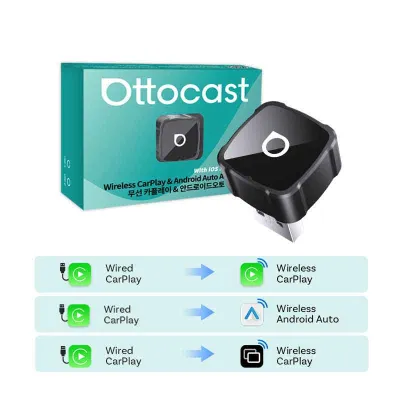
7 Lazada user ratings
Fast delivery. Able to connect to car and use screen mirroring. However cannot use Netflix/disney (already mentioned in product description)…Read full reviewShow less
Fast delivery. Able to connect to car and use screen mirroring. However cannot use Netflix/disney (already mentioned in product description). Cannot use Waze as well
👌Ease of Use: easy to use. Just insert in and use Compatibility: definitely and small in size. No messy cable.
User friendly interface, Stable performance, Great value for money, Perfect for VW Toyota, Easy installation,
Item well received
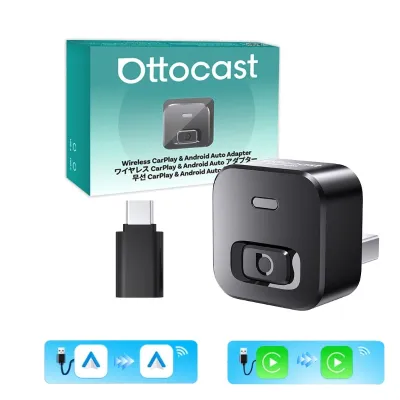
8 Lazada user ratings
Item was nicely packed and delivery was within the estimated delivery time mentioned,works fine
Tq seller for the fast delivery & expected time that i want to used😂
Fast delivery, packing quality good, quality good thank you
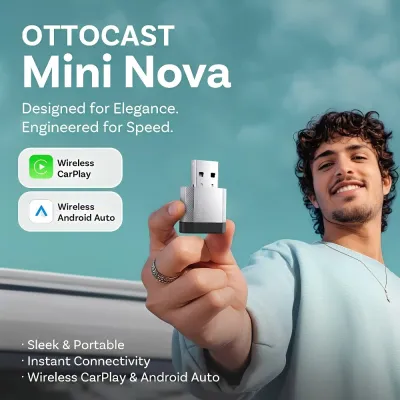
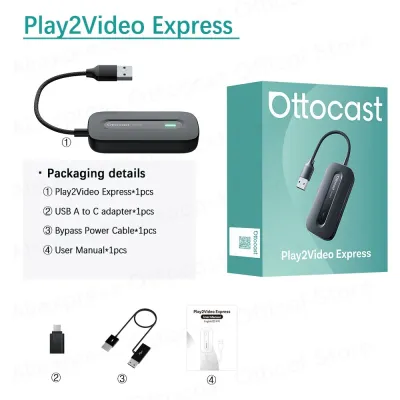
2 Lazada user ratings
item receive as advertised. delivery is timely. recommended.
It works well.
93 Lazada user ratings
I used it with the Sportage NQ5, and the connection was easy. There were no dropouts, and it's great. I switched from a dongle I had been us…Read full reviewShow less
I used it with the Sportage NQ5, and the connection was easy. There were no dropouts, and it's great. I switched from a dongle I had been using because of connection issues, and I'm really satisfied with this product's performance.
Everything's great. Works seamlessly with wireless Android Auto on my 2018 Mitsubishi Outlander. Definitely recommend!
Works great and quick in my Audi A3 2017. Super tiny and out of sight. It's the little green light.
Really great product. Easy to install. This is the second one I've bought. Totally recommend it.
Wow, congrats! Awesome product! I'm excited to test it out. All the best! Woohoo!
Prices are valid at publication and may change. Please refer to the product page for the latest price.
Your phone and dashboard screens also provide valuable diagnostic clues. If your phone displays a message indicating that CarPlay is active but the car’s screen remains black, the issue lies in the video transmission phase rather than the initial wireless pairing. Conversely, if your phone’s Bluetooth menu shows the adapter as disconnected or repeatedly prompts you to pair without success, the initial wireless handshake is failing.
Pre-Check: Power and Vehicle Compatibility
Before adjusting software settings or resetting network profiles, you must verify that the physical and structural prerequisites for wireless CarPlay are met. The adapter relies entirely on the vehicle’s USB port for both power and data transmission. Many modern vehicles feature multiple USB ports, but only one specific port is wired directly to the infotainment system for data transfer, while others are strictly designed for charging devices.

Consult your vehicle’s owner manual to identify the designated CarPlay data port, which is often marked with a smartphone icon or a specific USB symbol. If the adapter is plugged into a charge-only port, it may power on and display an indicator light, but it will never establish a connection with the vehicle’s screen. Additionally, ensure you are using the high-quality USB cable supplied with the adapter, as aftermarket cables often lack the shielding or wire gauge required to carry stable data and power simultaneously.
It is also essential to confirm that your vehicle’s native wired CarPlay system is functioning correctly. Unplug the wireless adapter and connect your phone directly to the vehicle’s data port using an original manufacturer cable. If wired CarPlay fails to launch, the issue lies within your vehicle’s infotainment settings or your phone’s permissions, rather than the wireless adapter. Always verify your vehicle’s specific model year and infotainment compatibility directly from the manufacturer’s documentation before troubleshooting, as system requirements can vary.
Step-by-Step Pairing and Network Reset
When wireless connections fail repeatedly, corrupted network caches or signal conflicts are the most common culprits. Your phone can become confused when trying to manage connections to the vehicle’s native Bluetooth system, the adapter’s Bluetooth signal, and the adapter’s local Wi-Fi network simultaneously. Clearing these profiles and starting with a clean slate is the most reliable way to re-establish the wireless bridge.
First, open the Bluetooth settings on your phone and locate the entry for your adapter. Select the option to forget or delete the device from your paired list. Next, navigate to your phone’s Wi-Fi settings, locate the network name associated with the adapter, and forget that network as well. To prevent signal conflicts, you must also forget your vehicle’s native Bluetooth connection on your phone, as the car’s built-in system may attempt to hijack the audio connection while the adapter is trying to boot.
Once all old profiles are cleared, restart both your phone and your vehicle’s infotainment system to clear any temporary system memory. Plug the adapter back into the designated USB data port and wait for the boot cycle to complete, which is typically indicated by a stable light pattern on the device. Open your phone’s Bluetooth menu, search for the adapter’s signal, and initiate pairing. Accept any prompts on your phone asking to allow CarPlay or sync contacts, and wait for the phone to automatically transition the connection to the adapter’s private Wi-Fi network.
Firmware and Software Verification
Outdated software on either your smartphone or the adapter itself can introduce compatibility bugs, especially after major mobile operating system updates. Phone manufacturers frequently update security protocols and background network permissions, which can inadvertently block the wireless handshake required for CarPlay to function. Keeping both systems updated ensures long-term stability.
Check your phone’s settings menu to verify that you are running the latest version of iOS or Android OS. If an update is available, install it while connected to a stable home network before attempting to reconnect to your vehicle. Once your phone is updated, you should check for and apply any pending firmware updates for the adapter itself.
To update the adapter’s firmware, connect your phone directly to the adapter’s local Wi-Fi network while the device is powered on in your vehicle. Open a web browser on your phone and enter the specific IP address listed in your adapter’s official instruction manual. This local web interface allows you to view the current firmware version, check for online updates, and initiate the installation process. If the interface is completely unresponsive or the connection drops continuously, use the physical reset button on the adapter casing or select the factory reset option within the web portal to restore the device to its default state.
Troubleshooting Matrix: Symptoms to Solutions
To help you quickly diagnose and resolve specific connection failures, refer to the troubleshooting matrix below. This table maps common observable behaviors to their most likely causes and immediate user-level solutions.
| Symptom | Likely Cause | Recommended Action |
|---|---|---|
| Indicator light remains completely dark | No power delivery from the USB port | Verify the cable is secure; test a different USB port or consult the vehicle manual to locate the dedicated data port. |
| Light is solid, but CarPlay does not launch | Wi-Fi handshake failure or video protocol block | Forget the adapter's Bluetooth and Wi-Fi profiles on your phone, restart both devices, and complete the pairing sequence again. |
| Connection drops when shifting gears or starting | Power fluctuation or vehicle system interference | Ensure the USB cable is undamaged; check if your vehicle's auto-start-stop system causes temporary voltage drops in the accessory port. |
| Phone connects to Bluetooth but Wi-Fi fails | IP conflict or background network restriction | Disable VPNs, personal hotspots, and third-party security apps on your phone that might block local Wi-Fi connections. |
When to Contact Ottocast Support
While most connection issues can be resolved through software resets and configuration adjustments, certain scenarios point to physical hardware failures that require professional assistance. If you observe physical damage to the adapter’s casing, a loose USB connector port, or a frayed connection cable, the hardware may no longer be capable of maintaining a stable data stream. In these cases, attempting to force a connection can risk damaging your vehicle’s USB port.
If the adapter fails to power on or display any indicator lights across multiple verified USB ports, different cables, and entirely different vehicles, the internal circuitry may have failed. Before reaching out to the manufacturer or retailer for warranty service, gather all necessary documentation to expedite your claim. Locate your original proof of purchase, note the device’s serial number, and write down your exact vehicle make, model, and year, along with the specific smartphone model and operating system version you are using.
Preventing Future Connection Drops
Maintaining a stable wireless CarPlay environment requires active management of your phone’s wireless landscape. Your phone’s operating system is designed to prioritize known Wi-Fi networks with active internet access. If your vehicle is parked near your home or office, your phone may attempt to cling to your home Wi-Fi network, interrupting the local Wi-Fi handshake required by the adapter. Disabling auto-join on home networks while in your vehicle can prevent this conflict.
Avoid using multiple wireless dongles, Bluetooth transmitters, or smart vehicle accessories simultaneously within the cabin. These devices operate on similar wireless frequencies and can cause electromagnetic interference, leading to sudden audio dropouts or complete connection disconnects. Finally, establish a routine to check for adapter firmware updates every few months, particularly after major smartphone operating system releases, to ensure seamless compatibility and enjoy ongoing performance improvements.
Community discussion
Share your experience or ask a question. Comments are reviewed before publication.