
Setting up your Ottocast wireless CarPlay adapter transforms your daily commute by eliminating physical cables. Instead of plugging in your iPhone every time you step into the cabin, this compact device establishes a swift, automatic connection to your vehicle’s infotainment system. The initial configuration requires a specific sequence of physical connections and digital handshakes, but once completed, the system operates seamlessly in the background.
To achieve a successful setup, you must coordinate your vehicle’s hardware, your iPhone’s wireless settings, and the adapter’s internal software. This guide walks you through the entire process, from verifying compatibility to troubleshooting common pairing hurdles, ensuring your wireless CarPlay experience is stable and responsive from your very first drive.
What You Need Before Starting the Setup
Before unboxing your adapter, verify that your vehicle and smartphone meet the necessary technical requirements. The most critical prerequisite is that your car must already have a factory-installed, wired Apple CarPlay system. Wireless adapters function by translating the wireless signal from your phone into a format the car’s existing wired system can understand; they cannot add CarPlay functionality to a vehicle that lacks the native software.
Products mentioned in this guide
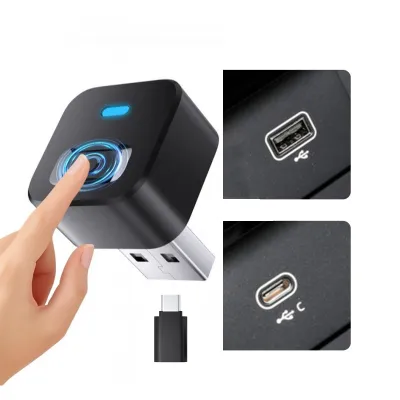
7 Lazada user ratings
Received yesterday. Installed today and the installation was easy and straightforward. The instruction manual is very detailed. I have tried…Read full reviewShow less
Received yesterday. Installed today and the installation was easy and straightforward. The instruction manual is very detailed. I have tried various carplay wireless adapters but this is first time I got it to worked. My car is a Subaru Forester.
The delivery was much faster than expected. The advantage of the button to disconnect from the device is really convenient. Auto connection …Read full reviewShow less
The delivery was much faster than expected. The advantage of the button to disconnect from the device is really convenient. Auto connection also makes it easy to use.
fast delivery, connection take some time to detect android auto as apple car play was detected first. tested n worked well. no lagging.
Connectivity:Super easy Bluetooth connection.
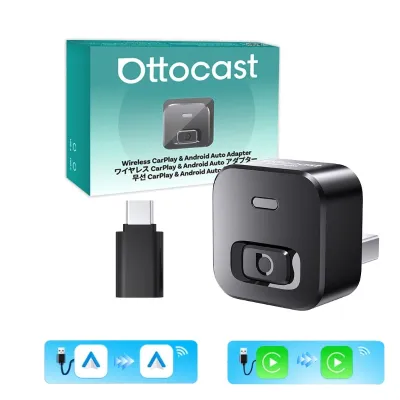
8 Lazada user ratings
Item was nicely packed and delivery was within the estimated delivery time mentioned,works fine
Tq seller for the fast delivery & expected time that i want to used😂
Fast delivery, packing quality good, quality good thank you
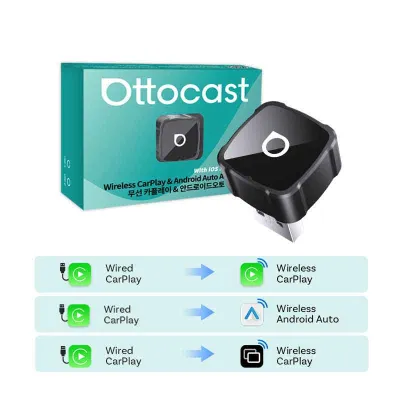
7 Lazada user ratings
Fast delivery. Able to connect to car and use screen mirroring. However cannot use Netflix/disney (already mentioned in product description)…Read full reviewShow less
Fast delivery. Able to connect to car and use screen mirroring. However cannot use Netflix/disney (already mentioned in product description). Cannot use Waze as well
👌Ease of Use: easy to use. Just insert in and use Compatibility: definitely and small in size. No messy cable.
User friendly interface, Stable performance, Great value for money, Perfect for VW Toyota, Easy installation,
Item well received
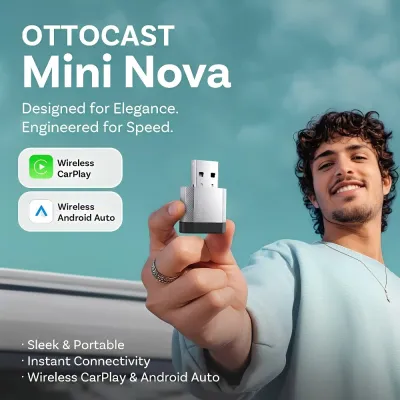
2 Lazada user ratings
item receive as advertised. delivery is timely. recommended.
It works well.
Prices are valid at publication and may change. Please refer to the product page for the latest price.
Next, examine your iPhone to ensure it is ready for the wireless transition. Your device should run a compatible version of iOS, and you must have both Bluetooth and Wi-Fi enabled in your system settings. It is also highly recommended to disconnect any active VPNs or personal hotspots on your phone, as these network configurations can interfere with the dedicated Wi-Fi channel the adapter uses to stream data.
Finally, locate the correct USB port in your vehicle’s dashboard or center console. Modern cars often feature multiple USB-A or USB-C ports, but typically only one of these is wired directly to the infotainment system for data transfer. Look for a port marked with a smartphone icon, a CarPlay logo, or a distinct outline. Ports located in the rear passenger area or those marked solely with a lightning bolt or “charge only” label will not transmit the data required to initialize the adapter.
Step-by-Step Guide to Pairing Your Ottocast Adapter
Transitioning from a wired connection to a wireless one involves a physical installation phase followed by a digital pairing sequence. Following these steps in order prevents common software conflicts and ensures the vehicle’s computer recognizes the adapter correctly.

Connecting the Adapter to Your Vehicle
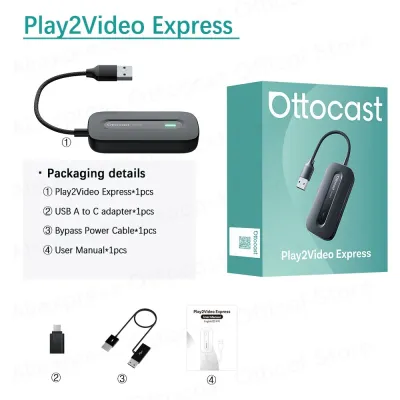
Begin by selecting the appropriate cable provided in the adapter’s packaging. Most packages include both a USB-A to USB-C cable and a dual-ended USB-C cable to accommodate different vehicle designs. Plug the USB-C end directly into the adapter, and insert the opposite end into your car’s designated CarPlay data port.
Once connected, observe the small LED indicator light on the body of the adapter. This light serves as your primary diagnostic tool during the physical setup phase. A solid or flashing light indicates that the USB port is delivering sufficient power to boot up the adapter’s internal processor. If no light appears, verify that the cable is seated firmly in both the adapter and the vehicle’s port.
With the adapter powered on, turn your vehicle’s ignition to the accessory or engine-on position. Watch your car’s infotainment screen and wait for it to recognize the new hardware. The system will typically treat the adapter as if it were a physically connected iPhone, occasionally displaying a startup screen or a prompt asking if you would like to launch Apple CarPlay.
Pairing Your iPhone via Bluetooth and Wi-Fi
With the adapter running and recognized by the car, unlock your iPhone and navigate to the Settings menu. Tap on Bluetooth and ensure the toggle is switched to the active position. The phone will begin scanning for nearby discoverable devices, listing them at the bottom of the screen.
Look for a new device name that matches the naming convention specified in your adapter’s user manual. This name often begins with the brand name or a generic identifier like “OTTO” followed by a string of numbers or letters. Tap on this device name to initiate the Bluetooth pairing request.
A prompt will appear on your iPhone screen asking you to confirm the pairing code. Confirm that the code matches if displayed on your car’s screen, then tap “Pair.” If prompted to allow contacts and favorites to sync, you can choose to allow or skip this step based on your personal preference, as it does not affect the core wireless CarPlay connection.
During this process, keep your iPhone’s Wi-Fi antenna turned on, even if you are not connected to an external internet network. The Bluetooth connection is only utilized to establish the initial security handshake. Once paired, the devices automatically negotiate a high-bandwidth, local Wi-Fi connection to handle the heavy data load of navigation maps and audio streaming.
Finalizing the Wireless CarPlay Connection
Immediately after the Bluetooth pairing is successful, your iPhone will display a critical system prompt asking, “Use CarPlay with this device?” Tap the “Use CarPlay” button to authorize the automatic wireless transition. Denying this prompt or ignoring it will halt the setup process, requiring you to delete the connection and start over.
Once authorized, watch your vehicle’s infotainment screen as it transitions from the native manufacturer menu to the familiar Apple CarPlay interface. This transition can take anywhere from ten to thirty seconds during the initial handshake as the two systems sync their display resolutions and audio channels.
After the CarPlay home screen appears, take a moment to secure the physical hardware. Use the included adhesive pads or place the adapter in a storage cubby where it will not slide around during acceleration or cornering. Securing the device prevents physical strain on the USB port and minimizes the risk of accidental cable disconnections while driving.
Verifying the Connection and First-Drive Configuration
Before hitting the road, conduct a thorough functional check to ensure all aspects of the wireless connection are operating correctly. Open a navigation app such as Apple Maps or Google Maps and set a test destination to verify that GPS data is updating smoothly. Next, play a track from your preferred music or podcast app, checking for any audio stuttering or lag when skipping tracks.
Test the voice control integration by pressing the physical push-to-talk button on your steering wheel or saying the hands-free activation phrase for Siri. Ask for a weather update or request a specific playlist to confirm that the vehicle’s microphone is capturing your voice clearly through the adapter’s audio channel.
It is also wise to check for any available firmware updates right away. Manufacturers frequently release software patches to improve compatibility with newer iOS versions or specific vehicle models. To check for updates, refer to your product manual for the specific IP address (often a sequence like 192.168.1.101) that you can enter into your iPhone’s web browser while connected to the adapter’s local Wi-Fi network.
Finally, customize your CarPlay preferences directly on your iPhone by navigating to Settings > General > CarPlay and selecting your vehicle. Here, you can rearrange the app icons on your dashboard, enable or disable the driving focus mode, and choose whether CarPlay automatically launches in dark or light mode based on your phone’s system settings.
Troubleshooting Common First-Time Setup Issues
If your infotainment screen remains blank or your phone fails to find the adapter’s Bluetooth signal, a simple system reset is often the most effective solution. Start by navigating to your iPhone’s Bluetooth settings, tapping the information icon next to the adapter’s name, and selecting “Forget This Device.” Turn your iPhone’s Bluetooth off and back on, restart your phone, and power-cycle your vehicle’s engine to clear any temporary software glitches.
Intermittent disconnections during a drive are frequently caused by power fluctuations or signal interference. Ensure you are using the high-quality USB cable supplied by the manufacturer, as thinner aftermarket charging cables often fail to deliver the stable data stream required for wireless CarPlay. Additionally, avoid plugging the adapter into unpowered USB hubs or multi-port splitters, which can drop the voltage below the adapter’s operational threshold.
If you encounter persistent connection drops in specific geographic areas, local wireless interference may be temporarily disrupting the Wi-Fi channel. If the adapter consistently fails to connect despite trying different cables and resetting your phone, stop troubleshooting to avoid damaging your vehicle’s ports. Consult the user manual for your specific model or reach out to the manufacturer’s customer support team for targeted diagnostic assistance.
Maintaining a Stable Wireless CarPlay Connection
To ensure your wireless CarPlay system remains reliable over the long term, establish a routine of keeping your devices updated. Install iOS updates on your iPhone as they become available, and periodically check the adapter’s web portal for firmware updates that address emerging software bugs.
Be mindful of your phone’s physical environment while driving, especially in warm climates like Singapore. Running wireless CarPlay requires your phone’s processor, Wi-Fi chip, and Bluetooth antenna to work simultaneously, which generates noticeable heat. Avoid placing your iPhone on the dashboard in direct sunlight or inside a sealed, unventilated glove box, as thermal throttling can degrade Wi-Fi performance and cause sudden connection drops.
Lastly, make it a habit to inspect the physical connection points every few months. Dust, lint, and moisture can accumulate inside your vehicle’s USB port or on the adapter’s plug, leading to minor power interruptions. Gently cleaning the ports with a dry, non-conductive brush or compressed air helps maintain a clean electrical contact and prevents unexpected disconnections on the road.
Frequently Asked Questions (FAQ)
Can I use the Ottocast adapter with multiple iPhones in the same car?
Yes, you can pair multiple iPhones with the adapter, but it can only actively connect to one phone at a time. When you start the vehicle, the adapter will typically attempt to connect to the last phone that was actively paired with it. If multiple paired users are in the car simultaneously, you can switch the active connection by turning off Bluetooth and Wi-Fi on the phone you do not wish to use, allowing the adapter to find and connect to the secondary device.
Will the adapter drain my car battery when the engine is off?
In most modern vehicles, the adapter will not drain your car battery because the vehicle’s computer automatically cuts power to the USB ports shortly after the ignition is turned off and the doors are locked. However, some older or specific vehicle models keep their USB ports powered indefinitely. To verify your car’s behavior, turn off the engine, lock the vehicle, and look through the window to see if the adapter’s LED indicator light turns off after a few minutes. If the light remains on indefinitely, it is safest to unplug the adapter when parking the vehicle for extended periods.
Community discussion
Share your experience or ask a question. Comments are reviewed before publication.