
Upgrading an older vehicle’s infotainment system to wireless CarPlay using a Carlinkit adapter is a highly effective way to modernize your daily commute. The setup process requires connecting the adapter to your car’s existing wired CarPlay USB port and establishing a wireless handshake with your iPhone. This eliminates the need for messy cables while keeping your navigation and media apps easily accessible. By understanding the compatibility requirements, physical connection steps, and wireless pairing process, you can achieve a seamless, cable-free connection every time you step into your vehicle.
Verify Vehicle and Adapter Compatibility Before Installation
Before purchasing or installing a Carlinkit adapter, it is essential to verify that your vehicle and mobile device meet the necessary hardware and software requirements. Standard wireless CarPlay adapters do not add CarPlay functionality to a vehicle that lacks it; instead, they act as a bridge to convert an existing wired CarPlay system into a wireless one. Therefore, your older car must already have a factory-installed or compatible aftermarket head unit that supports wired CarPlay. You can verify this by checking your vehicle’s owner’s manual, consulting the manufacturer’s official specification sheet, or plugging your iPhone directly into the car’s USB port to see if the CarPlay interface launches automatically.
Additionally, you must confirm that the specific Carlinkit model you have selected is compatible with your vehicle’s make, model, and production year. Different adapter models are engineered for specific infotainment operating systems, and compatibility can vary significantly. For instance, some adapters are designed exclusively for factory wired systems, while others are tailored for aftermarket Android-based head units. On the mobile device side, ensure your iPhone is running a compatible version of iOS. While wired CarPlay is supported on older devices, wireless projection demands higher processing power and dual-band wireless capabilities, making a modern iOS version highly recommended for a stable, lag-free connection.
Products mentioned in this guide
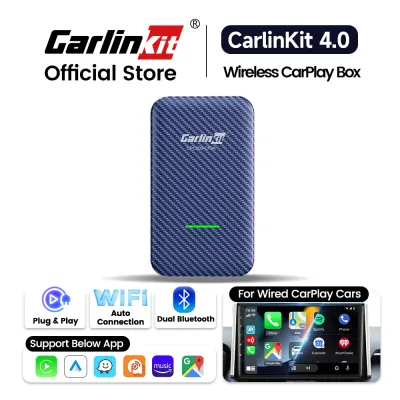
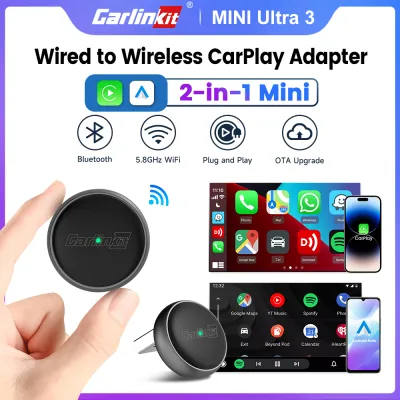
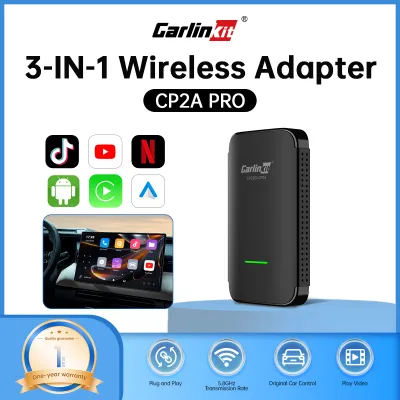
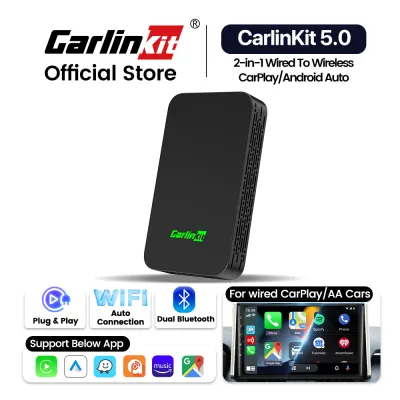
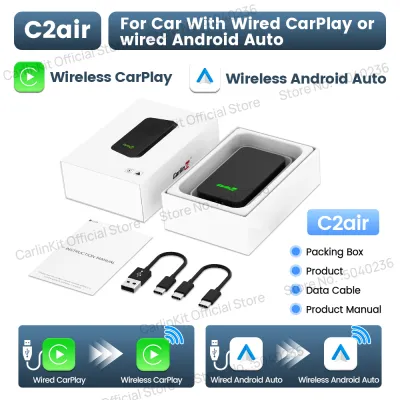
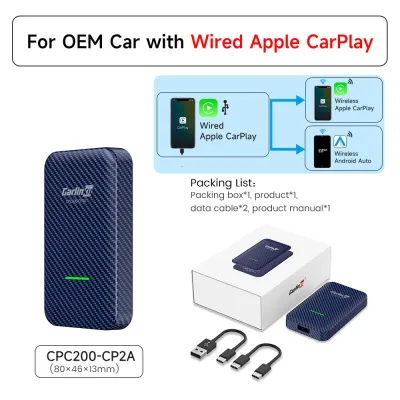
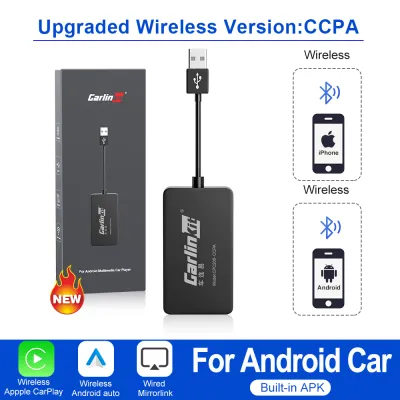
Prices are valid at publication and may change. Please refer to the product page for the latest price.
Gather Required Tools and Prepare the Vehicle
Preparing your vehicle and gathering the correct tools beforehand will ensure a smooth and safe installation process. You do not need specialized mechanical tools for this setup, but having the right accessories is crucial. First, obtain a high-quality, certified data-syncing Lightning or USB-C cable. Avoid using cheap, charge-only cables, as they lack the internal data lines required to transmit the initial handshake signals between the adapter and the vehicle’s head unit.

Next, prioritize safety by parking your vehicle in a safe, well-ventilated area. If you are setting up the system in Singapore, avoid enclosed multi-storey car parks if you plan to keep the engine running, as exhaust fumes can accumulate quickly. Engage the parking brake firmly to prevent any accidental vehicle movement. Turn on the vehicle’s engine or switch the ignition to accessory mode to provide a stable power supply to the infotainment system. Finally, clear any clutter around the center console and USB ports to ensure you have unobstructed access and to prevent physical strain on the adapter’s cable once connected.
Step-by-Step Physical Connection and Power Up
The physical installation begins with identifying the correct USB port in your vehicle’s center console or dashboard. Many older vehicles feature multiple USB ports, but typically only one is wired directly to the infotainment system for data transmission. This port is often distinguished by a smartphone icon, a screen icon, or the word “MDI” or “App.” Other ports marked with a lightning bolt or a battery icon are designed solely for charging and will not recognize the adapter. If your vehicle’s documentation does not clearly specify which port supports data, you can test them individually using your iPhone’s original cable.
Once you have identified the correct data port, insert the Carlinkit adapter’s USB cable firmly into the port, then connect the other end to the adapter itself. As soon as the connection is made, the adapter will draw power from the vehicle’s electrical system. Observe the device’s indicator light to confirm it is receiving power. Because indicator light behaviors and colors can vary across different product generations and firmware versions, refer to your specific model’s instruction manual to interpret the startup sequence.
After plugging in the device, allow the vehicle’s head unit sufficient time to boot up and recognize the new USB hardware. Depending on the processing speed of your car’s infotainment system, this initial recognition process can take anywhere from thirty seconds to a full minute. Avoid unplugging the device or pressing buttons on the head unit during this initial boot phase, as doing so can interrupt the system’s hardware detection routine.
Configure Bluetooth and Wi-Fi Pairing with Your iPhone
Once the adapter is powered on and recognized by the car, you must configure the wireless connection on your iPhone. Wireless CarPlay operates using a dual-band wireless approach: it utilizes Bluetooth for the initial discovery, pairing, and handshake, and then automatically switches to a local Wi-Fi connection established by the adapter to handle the high-bandwidth data transfer required for maps, audio streaming, and system responses.
To begin, open your iPhone’s settings and ensure both Bluetooth and Wi-Fi are turned on. Navigate to the Bluetooth menu and wait for your phone to scan for nearby devices. The Carlinkit adapter should appear in the list of available devices, often identified by a name corresponding to your car’s brand or a generic identifier listed in the adapter’s manual. Tap on the device name to initiate the pairing process.
During the pairing sequence, your iPhone will display a prompt asking for permission to pair and another asking if you want to use CarPlay with the device. Accept both prompts to authorize the connection. Simultaneously, keep an eye on your vehicle’s infotainment screen; some head units may require you to confirm the connection or select the newly detected CarPlay device from an on-screen menu. Once authorized, the adapter will automatically establish the Wi-Fi connection in the background, and the familiar CarPlay interface should launch on your car’s display.
Troubleshoot Common Connection and Audio Issues
While the setup process is generally straightforward, you may occasionally encounter connection or audio performance issues. If the vehicle’s head unit fails to recognize the adapter, the primary culprit is often a faulty or incompatible USB cable. Verify that you are using a high-quality data cable, try plugging the adapter into a different USB port if available, or perform a soft reset by unplugging the adapter, restarting your vehicle’s infotainment system, and plugging it back in.
If you experience frequent connection drops or if the wireless connection fails to establish automatically when you enter the car, you may need to clear the connection cache. On your iPhone, go to the Bluetooth and Wi-Fi settings, locate the adapter’s network profiles, and select “Forget This Device” or “Forget This Network.” Restart your phone, unplug the adapter for ten seconds, and repeat the initial pairing process. Additionally, check for potential wireless interference in the cabin, such as other active Bluetooth devices, smartwatches, or local Wi-Fi hotspots that might be competing for the connection.
Audio delays, lag in navigation prompts, or microphone issues during calls can sometimes occur due to synchronization mismatches between the adapter and the car’s older hardware. Many Carlinkit adapters feature a built-in web-based backend interface that allows you to adjust advanced settings. To access this, connect your iPhone to the adapter’s Wi-Fi network, open a web browser, and enter the IP address specified in your user manual (commonly 192.168.50.2). From this interface, you can adjust the audio delay settings (often measured in milliseconds) to synchronize the sound, or toggle the microphone settings to improve call quality.
Optimize Settings for Daily Driving and Maintenance
To ensure a reliable and convenient experience during your daily drives, you should optimize both the physical setup and the software configuration of your adapter. For a seamless auto-connect routine, make it a habit to keep your iPhone’s Bluetooth and Wi-Fi enabled at all times. When you start your vehicle, the adapter will automatically detect your phone and launch CarPlay within seconds, allowing you to keep your phone in your pocket or bag.
Physical placement of the adapter is also important for safety and longevity. Avoid letting the adapter dangle freely from the USB port, as vehicle vibrations and movement can cause cable fatigue, loose connections, or damage to the car’s USB port over time. Use cable management clips or high-temperature adhesive mounts to secure the adapter to a flat surface on the center console or inside a storage cubby. If you are driving in Singapore’s hot and humid climate, standard adhesive tapes may degrade quickly; look for automotive-grade, heat-resistant double-sided tape to ensure the device remains securely mounted even when parked under direct sunlight. Ensure the mounting position does not obstruct your gear shifter, handbrake, or any other physical driving controls.
Finally, establish safe boundaries for maintaining the device’s firmware. While firmware updates can resolve compatibility bugs and improve performance, they should only be performed if you are experiencing persistent issues. To update the firmware safely, access the adapter’s web backend interface while the vehicle is parked in a safe location. Keep the engine running during the update process to ensure a stable voltage supply from the car’s alternator, as a sudden drop in power—such as the car entering an automatic eco-sleep mode—can interrupt the update and permanently damage the adapter’s internal software. Never turn off the ignition or disconnect the phone while the update is in progress.
Frequently Asked Questions (FAQ)
Can I use a Carlinkit adapter if my older car does not have factory CarPlay?
Standard Carlinkit wireless adapters are designed specifically to convert an existing wired CarPlay system into a wireless one. If your older vehicle does not have factory-installed wired CarPlay, these standard adapters will not function. However, you are not entirely out of options. You can check for specialized aftermarket solutions, such as upgrading your vehicle’s head unit to an aftermarket double-DIN radio that supports CarPlay, or exploring specific adapter models designed to work with aftermarket Android-based screens. Always verify the exact hardware specifications and compatibility requirements of any aftermarket radio before purchasing an adapter.
Why does my iPhone battery drain faster when using the wireless adapter?
Wireless CarPlay is a resource-intensive process for your iPhone. To project the interface onto your car’s screen, your phone must simultaneously run GPS tracking for navigation, stream high-quality audio, process system commands, and maintain a continuous high-bandwidth Wi-Fi connection alongside a Bluetooth connection. This heavy processing load naturally increases power consumption and can cause the phone to run warmer than usual. To mitigate this battery drain during long road trips, it is highly recommended to plug your iPhone into a high-quality, dedicated fast charger connected to your vehicle’s 12V accessory socket, or utilize a wireless charging pad if your vehicle is equipped with one.
Community discussion
Share your experience or ask a question. Comments are reviewed before publication.