
Upgrading an older car with wireless Android Auto is one of the most convenient cabin upgrades you can make, eliminating the hassle of plugging in your phone every time you start the engine. However, before purchasing a wireless adapter, you must verify one critical detail: your car’s factory head unit must already natively support wired Android Auto. These plug-and-play adapters do not add the Android Auto software to a vehicle that lacks it; instead, they act as a wireless bridge for a system that is already built into your dashboard.
The Core Requirement: Wired Android Auto Compatibility
To understand whether a wireless adapter will work in your vehicle, distinguish between different types of smart car accessories. A standard wireless Android Auto adapter is a bridge device. It plugs into your car’s existing USB data port, tricks the head unit into thinking a wired phone is connected, and establishes a local Wi-Fi and Bluetooth connection. If your factory infotainment system lacks the underlying Android Auto software pre-installed by the manufacturer, the adapter has nothing to communicate with and will remain non-functional.
This is a common point of confusion. Many drivers assume that plugging a smart dongle into any USB port instantly projects their phone’s interface. In reality, standard dongles cannot add Android Auto to a car lacking the wired foundation. If your vehicle only supports basic Bluetooth pairing for calls and music streaming, a standard wireless adapter cannot upgrade your screen to a full projection interface.
Products mentioned in this guide
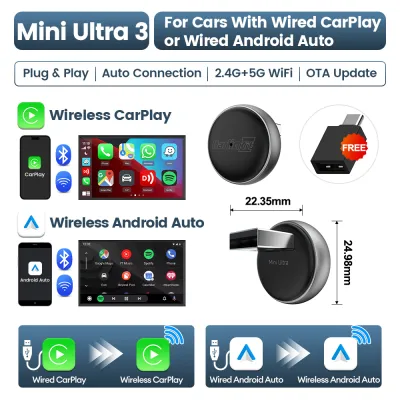
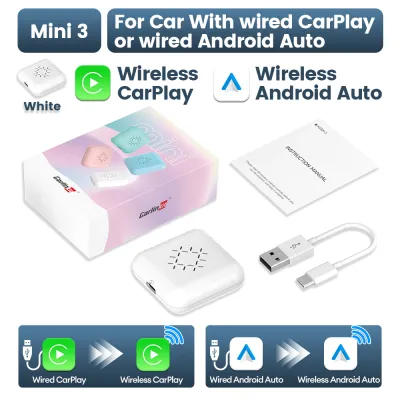
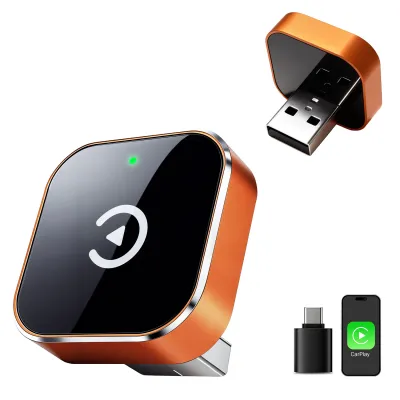
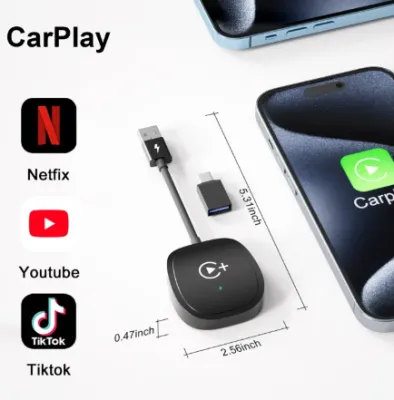
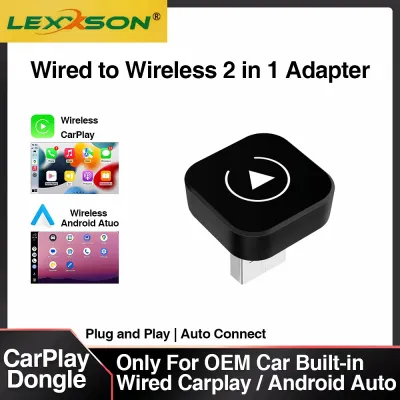
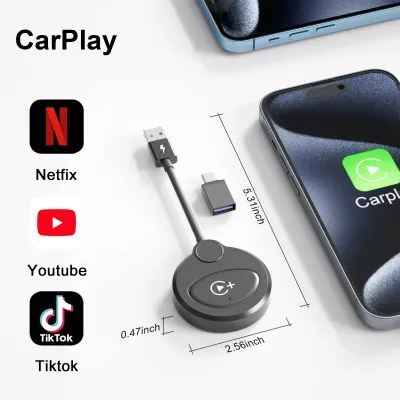
Prices are valid at publication and may change. Please refer to the product page for the latest price.
For vehicles without this native foundation, standalone infotainment boxes or “AI boxes” are sometimes used. These devices run their own operating system and attempt to project an interface through existing video inputs. However, they are highly complex, often suffer from compatibility issues, and are significantly more expensive than standard wireless adapters. Identifying the baseline wired requirement is the first and most crucial step before spending money.
Step-by-Step Diagnostic: Checking Your Factory Head Unit
Verifying whether your older car has the necessary wired foundation is a straightforward process. By following a few diagnostic steps, you can avoid the frustration of purchasing incompatible hardware.

Search the Infotainment Menus Turn on your car’s ignition and navigate through the factory head unit’s home screen and settings. Look for the Android Auto logo (a stylized teal arrowhead) or a menu option labeled “Smartphone Projection,” “App Connect,” or “Smart Link.” In some older vehicles, this icon remains greyed out or hidden until a compatible smartphone is physically connected.
Locate the Correct USB Data Port Not all USB ports in an older vehicle support data transfer. Many older cars feature multiple USB ports, but only one is wired directly to the infotainment system, while the others are strictly for charging. Examine the USB ports on your dashboard, center console, or inside the armrest. The correct port is typically marked with a smartphone icon, a laptop symbol, or the word “MDI” or “Data.” Ports marked only with a lightning bolt or a battery icon are power-only ports.
Consult the Owner’s Manual If you cannot find an obvious menu option or port icon, consult your vehicle’s owner’s manual. Look up “Android Auto” or “Smartphone Integration” in the index. Keep in mind that compatibility often depends on the exact model year and trim level. A base-model trim might lack the smartphone integration package, while the premium trim of the same model year includes it as standard.
Perform a Physical Wired Test The most reliable diagnostic is a physical test using an Android smartphone. You will need an Android phone running a compatible operating system version and a high-quality, data-certified USB cable. Connect your phone directly to the car’s designated USB data port. If your head unit supports the technology, your phone should prompt you to set up Android Auto, and the car’s screen should transition to the projection interface. If this connection succeeds, your car is fully compatible with a wireless adapter.
Alternative Solutions for Incompatible Factory Head Units
If your older car fails the physical wired test, there are several practical upgrade paths available, ranging from complete system overhauls to budget-friendly audio workarounds.
Install an Aftermarket Head Unit The most robust solution is replacing your factory radio with an aftermarket head unit that natively supports smartphone projection. This route requires careful planning, as you must source a dashboard fascia kit that matches your car’s interior and a compatible wiring harness to retain steering wheel controls and backup camera functionality. Because this involves electrical work and vehicle disassembly, consult your vehicle’s original instructions and seek qualified professional installation at a local car audio specialist in Singapore to ensure safety and road legality.
Evaluate Standalone Smart Screens Another alternative is a standalone smart screen that mounts to your dashboard or windshield. These devices function independently of your factory radio, plugging into your 12V accessory socket for power and transmitting audio to your car’s existing speakers via an auxiliary cable or an FM transmitter. While they provide a large, clear display for navigation apps, they add physical clutter to your dashboard and can obstruct your view of the road if not mounted carefully.
Use a Basic Bluetooth Audio Receiver If you prefer a low-cost, minimalist approach and do not require a map interface on your dashboard, a basic Bluetooth audio receiver is an excellent fallback. These compact adapters plug into your car’s auxiliary (AUX) port and a USB power source, allowing you to stream music and handle hands-free calls through your car’s speakers for under S$30. While you will still need to mount your phone on a vent holder to view navigation, this solution avoids the high cost and complexity of a full head unit replacement.
Selecting a Wireless Adapter for Verified Compatible Cars
Once you have verified that your car supports wired Android Auto, you can confidently shop for a wireless adapter. Pay attention to several physical and technical specifications to ensure a seamless experience.
Match the Physical Connection Check the physical USB port in your car to determine whether it uses a USB-A or USB-C interface. Most older vehicles utilize USB-A ports, while newer adapters may ship with USB-C cables. Ensure the adapter you select includes the correct cable or adapter tip to match your car’s port without requiring loose, third-party dongles that can degrade data transmission.
Verify the Manufacturer’s Compatibility List Before finalizing your purchase on an online marketplace, visit the adapter manufacturer’s official website to review their vehicle compatibility database. While these adapters are designed to be universal, certain vehicle makes or specific factory infotainment firmware versions may have known connection quirks. Confirming that your exact car model and year are listed can save you from unexpected troubleshooting.
Consider Power Output and Stability Older car USB ports often deliver lower power output than modern standards require. A wireless adapter must power its internal Wi-Fi and Bluetooth chips continuously. If your car’s USB port provides insufficient power, the adapter may boot loop or disconnect frequently. In such cases, you may need to source a specialized Y-cable that draws additional power from a separate 12V USB charger while routing data to the head unit.
Manage Latency Expectations While wireless adapters offer incredible convenience, they introduce a small amount of signal latency compared to a direct wired connection. You may notice a slight delay of one to two seconds when skipping music tracks or when voice commands are processed. This is a normal characteristic of wireless projection technology and is a minor trade-off for a cable-free cabin.
Frequently Asked Questions (FAQ)
Can I use a wireless Android Auto adapter if my car only supports Apple CarPlay?
Standard wireless Android Auto adapters cannot convert a CarPlay-only head unit into an Android Auto system. If your older car only has factory support for Apple CarPlay, a standard dongle will not function with an Android phone. However, there are specialized, multi-protocol conversion boxes available on ecommerce platforms that can translate Android Auto signals into a CarPlay format that your car understands. These conversion boxes require strict compatibility checks and may introduce more latency than standard adapters.
Why does my wireless adapter keep disconnecting in my older car?
Frequent disconnections in older vehicles are usually caused by unstable power delivery from aging USB ports or wireless signal interference. Ensure your phone’s battery optimization settings are not aggressively closing the Android Auto background processes. Additionally, high-temperature environments, such as a car parked under the hot Singapore sun, can cause the adapter to overheat and reset. Placing the adapter in a well-ventilated area away from direct sunlight can help maintain a stable connection.
Do I need to keep my phone unlocked for wireless Android Auto to work?
No, you do not need to keep your phone unlocked while driving. Once the initial pairing process is complete, the adapter will automatically connect to your phone in your pocket or bag as soon as you start the car. Your phone’s screen can remain locked and dark, which helps conserve battery life during long drives. However, the phone must remain physically inside the vehicle to maintain the local Wi-Fi and Bluetooth connection required for screen projection.
Community discussion
Share your experience or ask a question. Comments are reviewed before publication.