
Adding wireless CarPlay to your vehicle eliminates the hassle of plugging in your phone every time you step into the cabin. Whether you want to stream music seamlessly on your daily commute along the CTE or navigate busy streets without cable clutter, upgrading your infotainment system is highly achievable. The correct path depends entirely on your car’s existing setup, ranging from a simple plug-and-play adapter to a complete dashboard hardware replacement.
To make the right decision, you must first evaluate what your vehicle currently supports. This guide walks you through assessing your system, choosing the correct hardware, executing the installation safely, and troubleshooting common connection issues.
Assess Your Current Infotainment System
Before purchasing any new hardware, you must determine the baseline capabilities of your vehicle’s current infotainment system. The upgrade path for a car that already has wired CarPlay is fundamentally different from the path for an older vehicle with a basic radio.
Products mentioned in this guide
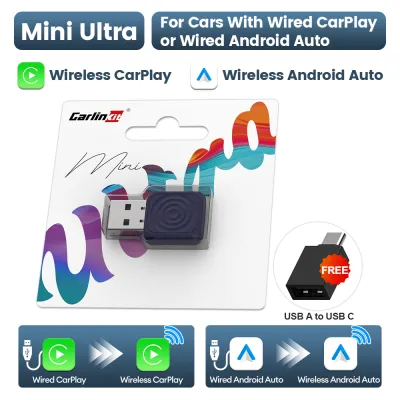
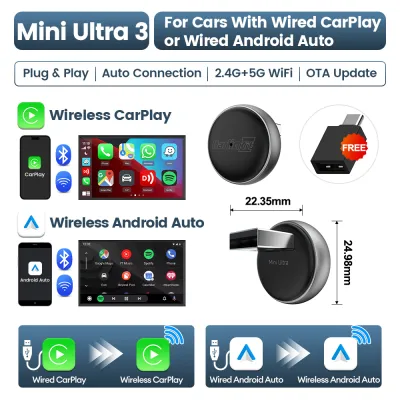
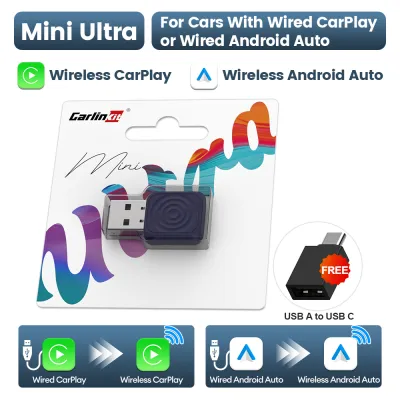
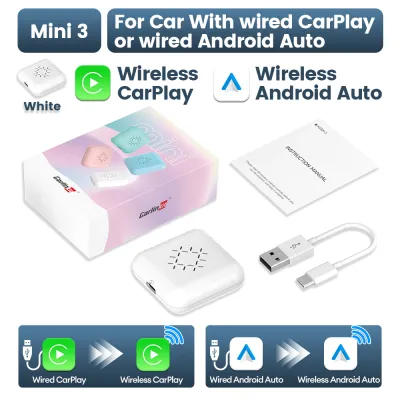
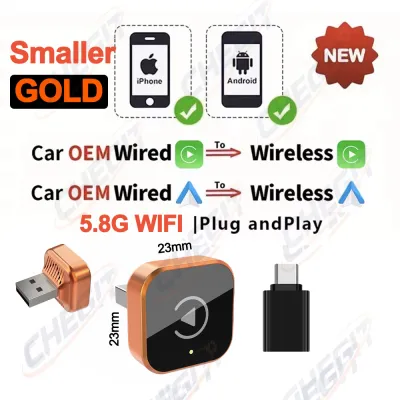
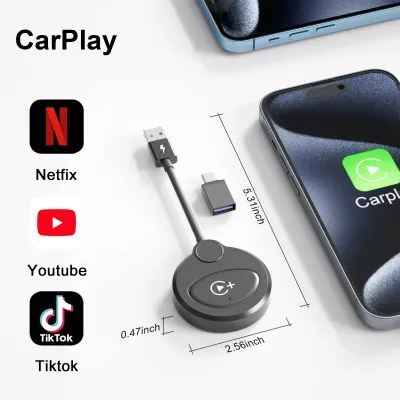
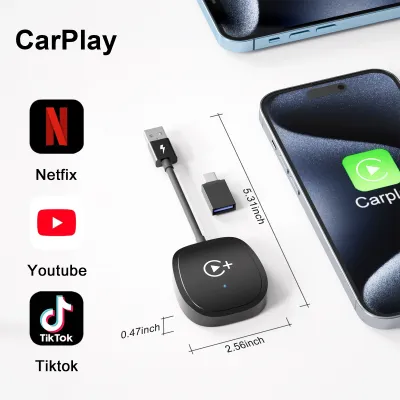
Prices are valid at publication and may change. Please refer to the product page for the latest price.
Start by inspecting your dashboard and center console for a dedicated smartphone integration port. This port is typically marked with a phone icon or a standard USB symbol, rather than a simple battery charging icon. Plug your iPhone into this port using a certified cable; if the CarPlay interface launches on your screen, your vehicle has factory wired CarPlay.
If your vehicle has a screen but plugging in your phone does nothing, check the system settings menu for any mention of smartphone projection. Some factory systems require you to enable CarPlay in the settings before it will recognize a connected device. If no such option exists, or if your dashboard features a traditional physical radio with no digital screen, your vehicle lacks CarPlay entirely.
Understanding this distinction is critical because it dictates your budget and installation complexity. Converting an existing wired system to wireless requires only a compact external adapter that plugs into your USB port. Conversely, adding CarPlay to a vehicle that lacks it entirely requires replacing the physical head unit or installing a specialized integration module behind the dashboard.
Select the Right Hardware for Your Upgrade
Once you have identified your starting point, you can select the hardware that matches your vehicle’s physical layout and your technical comfort level. There are three primary hardware categories available for this upgrade.

Wireless CarPlay Adapters These compact devices are designed exclusively for vehicles that already feature factory-installed wired CarPlay. They act as a bridge, plugging into your car’s data USB port and communicating with your phone via Bluetooth and Wi-Fi. Because they rely on the vehicle’s existing screen and software, they require no dashboard disassembly and can be set up in minutes.
Aftermarket Head Units If your car has an older stereo or lacks smartphone integration entirely, a replacement aftermarket head unit is the most comprehensive solution. These units replace your factory radio and come with built-in wireless CarPlay receivers. When selecting a head unit, you must verify the physical dimensions of your dashboard slot. Standard sizes are categorized as Single-DIN (approximately 50 mm tall) or Double-DIN (approximately 100 mm tall).
Integration Modules For vehicles with complex, highly integrated factory screens where replacing the radio is impractical, a vehicle-specific integration module is an alternative. These hardware boxes install behind the dashboard, intercepting the factory display signals to add CarPlay functionality while retaining your original screen, climate controls, and steering wheel buttons.
Before finalizing any hardware purchase, verify the following technical specifications against your vehicle’s documentation:
- USB Connector Type: Ensure the adapter matches your car's port (USB-A or USB-C).
- Power Requirements: Verify if your vehicle's USB port provides the standard 5V power output required to run an adapter.
- Dashboard Dimensions: Measure your radio cavity and consult a vehicle-specific dash kit guide to ensure a seamless physical fit.
- Road Legality and Safety: Ensure any aftermarket screen placement does not obstruct your forward field of view or interfere with passenger airbag deployment zones.
Set Up a Wireless CarPlay Adapter
Setting up a wireless CarPlay adapter is a straightforward process, but it requires following a specific sequence to ensure a stable initial handshake between your phone and the vehicle.
First, locate the correct data-enabled USB port in your vehicle. Many modern cars feature multiple USB ports, but often only one is wired directly to the infotainment system for data transfer, while the others are strictly for charging. Plug the adapter into the data port. A small LED indicator light on the adapter should illuminate, signaling that it is receiving power and booting up.
Next, open your iPhone’s settings and navigate to the Bluetooth menu. Look for the adapter’s broadcast name, which is typically listed in the adapter’s instruction manual or displayed on your car’s screen. Select the device to initiate pairing. Once the Bluetooth connection is established, your phone will prompt you with a dialog box asking if you want to use CarPlay. Tap “Use CarPlay” to authorize the connection.
After this initial authorization, the adapter will automatically configure a local Wi-Fi connection with your phone. Wireless CarPlay does not stream data over Bluetooth; instead, it uses Bluetooth solely for the initial handshake and then switches to a high-bandwidth Wi-Fi connection to transmit audio, map data, and touch inputs. Allow your phone to connect to the adapter’s Wi-Fi network when prompted.
Once the connection is established, the familiar CarPlay interface should load on your vehicle’s screen. Save the device profile on your phone to ensure that the system automatically reconnects every time you start the car.
Critical Stop Conditions:
- Charge-Only Port: If the adapter's indicator light does not turn on, or if the car's screen displays a "device not recognized" error, verify that you are not plugged into a charge-only port.
- Inadequate Power: Some older vehicle USB ports do not supply sufficient current to power an adapter consistently, which can lead to boot loops.
- Handshake Failures: If the Bluetooth pairing succeeds but the Wi-Fi connection fails to establish after several attempts, disconnect the adapter, restart your phone, and clear any previous Bluetooth pairings before trying again.
Install an Aftermarket Head Unit or Module
Installing a physical aftermarket head unit or an internal integration module is a complex task that requires careful handling of your vehicle’s electrical system. If you choose to perform this installation yourself, you must prioritize safety and follow a methodical process.
Before touching any tools or dashboard panels, you must disconnect the negative terminal of your vehicle’s battery. This simple step prevents accidental short circuits, blown fuses, or the accidental deployment of airbags while working near the dashboard wiring.
Begin by carefully removing the plastic trim panels surrounding your factory radio. Use non-marring plastic pry tools rather than metal screwdrivers to avoid scratching or cracking the dashboard materials. Once the trim is removed, unscrew the factory radio mounting brackets and gently pull the unit forward to expose the wiring harness at the back.
To connect the new head unit, always use a vehicle-specific wiring harness adapter. These adapters plug directly into your car’s factory wiring plugs on one end and connect to the new head unit’s harness on the other. This eliminates the need to cut, splice, or tape your vehicle’s original wiring, preserving the integrity of the electrical system and making it easy to revert to the factory setup later if needed. Match the wire colors according to the Electronic Industries Alliance (EIA) standard, securing all connections with solder and heat-shrink tubing or high-quality crimp connectors.
Next, plan the routing for any external components. Wireless CarPlay head units often require an external microphone for clear voice commands and phone calls, as well as a GPS antenna for accurate navigation. Route these cables behind the dashboard, ensuring they do not pinch against sharp metal brackets or interfere with the movement of the steering column and pedal assembly. Secure the cables with zip ties to prevent rattling noises while driving.
Safety and Professional Installation Boundaries:
- CAN Bus Networks: Many modern vehicles use a Controller Area Network (CAN bus) to communicate between the radio, instrument cluster, and steering wheel controls. Integrating a new head unit with these systems requires a specialized digital interface module.
- Integrated Climate Controls: If your vehicle's factory screen controls the air conditioning, heated seats, or other vehicle settings, replacing the head unit can disable these essential functions unless you use an advanced integration kit.
- ADAS and Safety Sensors: If your factory screen displays feed from advanced driver-assistance systems (ADAS), such as 360-degree parking cameras or lane-keep assist warnings, replacing the unit may compromise these safety features.
If your vehicle features any of these complex integrated systems, stop the installation immediately and consult a qualified professional car audio installer. Attempting to bypass these systems without professional tools and training can cause permanent damage to your vehicle’s electronics.
Test and Troubleshoot the Wireless Connection
After completing the physical installation or adapter setup, you must thoroughly test the system under normal driving conditions to ensure long-term reliability.
Start your vehicle and observe how long it takes for the wireless CarPlay interface to appear on the screen. A healthy system should automatically connect and display the home screen within 30 to 60 seconds of turning the ignition key. Once connected, test the primary functions: play a high-bitrate audio track to check for sound quality, launch a navigation app to verify GPS responsiveness, and make a test phone call to ensure the microphone captures clear audio without echo.
If you experience audio dropouts, lag when switching tracks, or map freezing, the cause is often wireless interference. Modern urban environments are filled with competing Wi-Fi and Bluetooth signals that can disrupt the connection between your phone and the receiver. To minimize interference, keep your phone in a central location, such as the center console tray, rather than in a pocket or bag where your body might block the signal.
For persistent connection failures, check if the adapter or head unit has a firmware update available. Manufacturers frequently release software updates to improve compatibility with new iOS versions and resolve known connection bugs. You can typically update adapter firmware by connecting your phone to the adapter’s local Wi-Fi network and accessing a specific IP address in your mobile web browser, as detailed in the product manual. If connection issues persist, try resetting your iPhone’s network settings or deleting the Bluetooth and Wi-Fi profiles for the CarPlay device and pairing them again from scratch.
Frequently Asked Questions (FAQ)
Will a wireless adapter drain my car battery when parked?
Most wireless CarPlay adapters draw a very small amount of power, but their impact on your car battery depends on how your vehicle’s USB ports behave when the ignition is turned off. In many cars, the USB ports lose power immediately or enter a sleep mode after a few minutes, meaning the adapter shuts down completely and will not drain the battery. However, some vehicles keep their USB ports constantly powered. If your car’s USB port remains active indefinitely, the adapter will continue to draw power and attempt to connect to your phone even when parked nearby. If you notice the adapter’s LED light remains on long after locking the car, you should unplug the device when parking for extended periods to prevent gradual battery drain.
Can I use a CarPlay adapter with an Android phone?
Standard wireless CarPlay adapters are designed specifically to work with iPhones and will not function with Android devices. If you use an Android phone, you must look for a dedicated wireless Android Auto adapter or a dual-system adapter that explicitly supports both protocols. Before purchasing, verify the product specifications to ensure compatibility with your specific phone model and operating system version, as dual-system adapters often have distinct setup procedures and software requirements for each platform.
Community discussion
Share your experience or ask a question. Comments are reviewed before publication.