
Adding Apple CarPlay to your vehicle’s existing audio system is entirely achievable, even if your car was manufactured before smartphone integration became standard. The most reliable methods include replacing your factory head unit with an aftermarket receiver, connecting a plug-and-play adapter to an existing compatible screen, or mounting a standalone dashboard display. By choosing the right approach, you can access real-time navigation, hands-free calling, and music streaming safely while driving.
Assess Your Current Head Unit and Vehicle Compatibility
Before purchasing any hardware, inspect your vehicle’s existing setup. Some modern factory systems already possess the necessary hardware for CarPlay but require a software update or dealer activation to unlock the feature. Check your owner’s manual or consult a local authorized workshop to see if a simple firmware flash can enable the system. Additionally, verify if your vehicle has a designated smartphone USB port, which is often marked with a phone or screen icon, as standard charging-only ports will not initiate the connection.
If your factory system cannot be updated, you must evaluate the physical dimensions of your dashboard. Car audio systems generally follow standard sizes: Single DIN (approximately 50mm tall) or Double DIN (approximately 100mm tall). Measure the available depth and surface area of your dashboard console, taking note of any curved trim panels, integrated air vents, or physical buttons that might obstruct an aftermarket screen. Always verify your specific vehicle model, year, and mounting position in your vehicle’s official documentation before purchasing any new hardware.
Products mentioned in this guide
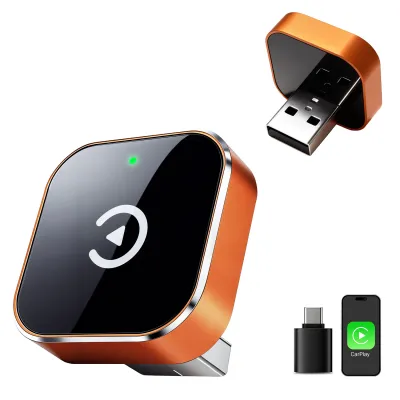
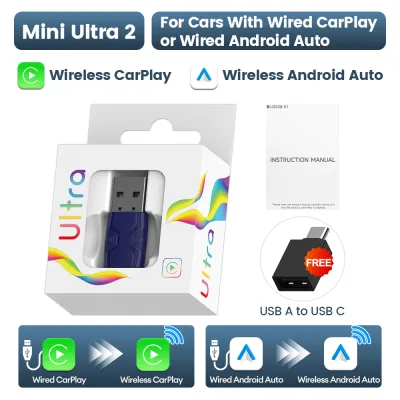
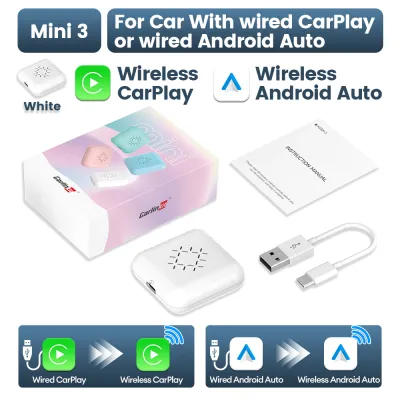
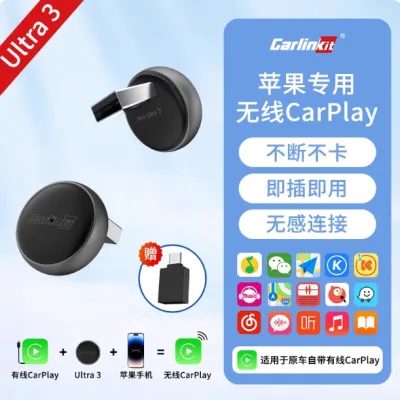
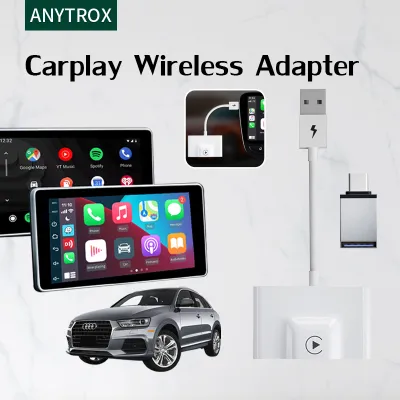
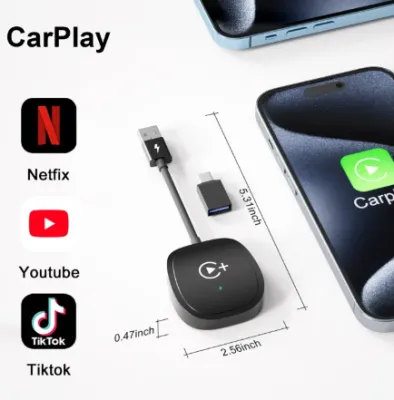
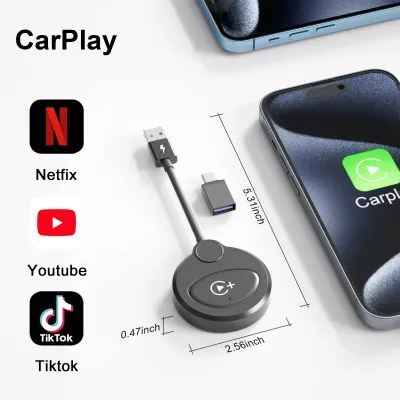
Prices are valid at publication and may change. Please refer to the product page for the latest price.
Retaining your vehicle’s original safety and convenience features is another critical consideration. Modern cars rely on integrated systems where steering wheel buttons, backup cameras, and parking sensors feed directly into the factory head unit. When planning an upgrade, you must verify whether the aftermarket system supports specialized integration modules that translate these proprietary signals, ensuring you do not lose vital safety functions after installation.
Choose the Right CarPlay Integration Method
Selecting the ideal CarPlay integration method requires balancing your budget, technical expertise, and aesthetic preferences. Each solution offers distinct trade-offs in terms of audio fidelity, installation complexity, and how seamlessly the hardware blends into your car’s interior.

Replacing the factory head unit with an aftermarket receiver is the gold standard for audio quality and feature completeness. This method replaces your entire radio console with a dedicated touchscreen unit, providing direct pre-amp outputs for superior sound, physical integration into standard DIN slots, and reliable wired or wireless connectivity. While this option can range from a few hundred to over a thousand S$ depending on the features, it demands a higher initial investment, requires vehicle-specific mounting kits, and often necessitates professional installation due to complex wiring configurations.
For vehicles that already feature a factory color screen but lack CarPlay, a CarPlay adapter or dongle offers a highly cost-effective alternative. These devices plug directly into your car’s existing USB media port and run software that emulates the CarPlay interface on your factory screen. While this preserves your original dashboard aesthetics and requires zero disassembly, performance depends heavily on the host system’s processing power, which can sometimes introduce minor audio latency or connection stability variables.
If your dashboard cannot accommodate a replacement head unit and lacks an existing screen, a standalone CarPlay display is a practical workaround. These portable monitors mount directly to your dashboard or windshield via a suction cup or adhesive bracket, drawing power from the 12V accessory outlet. Audio is routed to your car’s speakers via an auxiliary (AUX) cable or an FM transmitter. While this setup is incredibly easy to install and transfer between vehicles, it adds visible cables to your cabin and can slightly obstruct your forward line of sight.
Prepare for Installation and Safety Checks
Working on your vehicle’s electrical system requires strict adherence to safety protocols to prevent damage to sensitive electronics or personal injury. Before attempting any dashboard disassembly or handling electrical connectors, you must disconnect the negative terminal of your vehicle’s battery. This simple step eliminates the risk of accidental short circuits, blown fuses, or triggering costly airbag fault codes while unplugging factory harnesses.
Gathering the correct tools and vehicle-specific installation accessories beforehand is essential for a clean, reliable installation. Avoid cutting or splicing your car’s factory wiring, as this can lead to electrical faults and complicate future troubleshooting. Instead, source a vehicle-specific wiring harness adapter and antenna adapter that bridge the gap between your car’s proprietary plugs and the aftermarket head unit’s standard connectors. Essential tools typically include plastic trim removal levers to prevent scratching your dashboard, a socket set, screwdrivers, and electrical tape or heat-shrink tubing to secure wire connections.
Recognizing your technical limits is crucial when undertaking a DIY car electronics project. While basic head unit replacements in older vehicles are straightforward, modern cars often feature highly integrated systems. If your vehicle utilizes a complex CAN bus network, features advanced driver assistance systems (ADAS) linked to the central screen, or integrates climate controls directly into the factory display, stop and consult a qualified professional installer. Attempting to bypass these integrated systems without specialized diagnostic tools can disable critical vehicle functions.
Step-by-Step Installation Overview for Aftermarket Head Units
Begin the installation process by carefully removing the dashboard trim panels surrounding your factory radio. Use plastic trim removal tools to gently pry the clips loose, working your way around the perimeter to avoid cracking the plastic. Once the trim is removed, unscrew the mounting bolts securing the factory head unit, slide the unit forward, and carefully unplug the wiring harnesses and antenna cable from the rear. It is highly recommended to take clear photographs of the original wiring configuration before disconnecting any plugs for future reference.
Next, prepare the wiring harness adapter by matching the color-coded wires from your aftermarket head unit’s harness to the corresponding wires on the vehicle-specific adapter. Secure these connections using crimp connectors or solder and heat-shrink tubing, ensuring no bare copper is exposed. Connect the harness adapter, the radio antenna adapter, and any auxiliary cables—such as a rear USB extension cable or a backup camera feed—to the back of the new head unit, routing the cables neatly through the dashboard cavity to prevent pinching.
Before securing the new head unit permanently into the dashboard mounting bracket, temporarily reconnect the vehicle’s negative battery terminal to perform a comprehensive functional test. Turn the ignition key to the accessory position and verify that the unit powers on correctly. Test all essential functions, including radio reception, steering wheel control responsiveness, backup camera activation when shifting into reverse, and both wired and wireless CarPlay connectivity. Once you confirm everything operates flawlessly, disconnect the battery once more, slide the unit into place, tighten the mounting screws, and snap the dashboard trim panels back into position.
Troubleshoot Common CarPlay Connection Issues
If you experience connection dropouts or if CarPlay fails to launch, start by inspecting your physical connections. Many connectivity issues stem from low-quality or damaged USB cables that support charging but lack the high-speed data transfer capabilities required by CarPlay. Always use a certified, high-quality data cable and inspect both your phone’s charging port and the vehicle’s USB port for lint, dust, or debris that could obstruct a clean connection.
Software configurations on your iPhone can also prevent CarPlay from initiating correctly. Navigate to your phone’s settings menu to confirm that CarPlay is permitted to run while the screen is locked, and verify that Siri is fully enabled, as Apple’s voice assistant is a core requirement for CarPlay operation. If you are using a wireless connection, ensure that both Bluetooth and Wi-Fi are turned on, as wireless CarPlay utilizes Bluetooth for the initial handshake and Wi-Fi for data transmission.
For persistent issues such as audio lag, unresponsive steering wheel controls, or frozen screens, performing a system reset is often the most effective solution. Restart your iPhone and cycle your car’s ignition to reboot the head unit. If the problem continues, check the aftermarket manufacturer’s official website for firmware updates, which can be loaded onto a USB flash drive and installed directly via the head unit to resolve software bugs and improve device compatibility.
Frequently Asked Questions (FAQ)
Will adding an aftermarket CarPlay unit void my car's warranty?
Using plug-and-play wiring harness adapters that connect directly to your vehicle’s factory plugs without cutting or splicing the original wiring typically preserves your overall vehicle warranty. However, the warranty on the original audio system itself will no longer apply once it is removed. To mitigate any potential disputes with your dealership, retain your factory head unit and trim panels in safe storage so you can easily revert the vehicle to its original configuration if necessary.
Can I use wireless CarPlay with an older wired-only adapter?
To convert an existing wired CarPlay system to wireless, you must purchase a dedicated wireless CarPlay adapter that plugs into the vehicle’s active USB data port. This adapter acts as a wireless bridge between your iPhone and the dashboard screen. Note that this solution only works if your factory or aftermarket head unit already natively supports wired CarPlay; these adapters cannot add CarPlay functionality to a system that does not have it installed.
Community discussion
Share your experience or ask a question. Comments are reviewed before publication.