
Adding Apple CarPlay to an older vehicle without swapping the factory head unit is entirely possible, provided your car’s existing infotainment system has the right physical ports or data protocols. By using specialized CarPlay adapters, interface modules, or standalone smart screens, you can bridge the gap between your iPhone and your older stereo. This approach preserves the original aesthetic of your dashboard, maintains factory steering wheel controls, and avoids the high cost of a complete head unit replacement. However, success depends on matching the correct adapter technology to your vehicle’s specific hardware limitations.
To achieve a seamless setup, you must first understand what your current system can support. Different adapters solve different compatibility issues, ranging from converting an existing wired connection to wireless, to projecting a completely new interface onto a basic factory screen. Taking the time to assess your vehicle’s ports and software protocols before purchasing any hardware will save you time and prevent compatibility issues.
Assess Your Factory Head Unit for Adapter Compatibility
Before purchasing any adapter, you must determine if your existing factory stereo supports the necessary connections. The most straightforward upgrade path is for vehicles that already have wired Apple CarPlay from the factory but lack wireless convenience. For these systems, a simple wireless CarPlay dongle is usually compatible, as it merely acts as a bridge between your phone’s wireless signals and the car’s existing USB data protocol.
Products mentioned in this guide
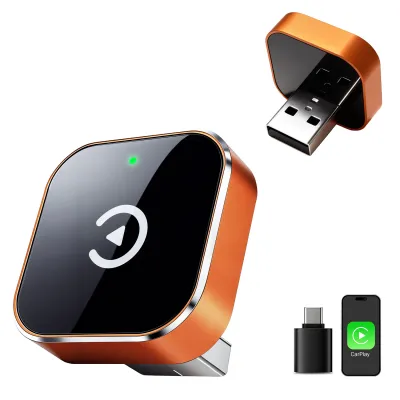
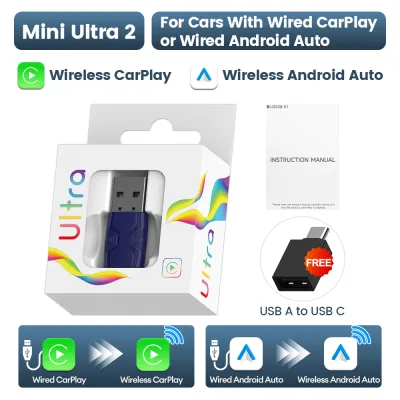
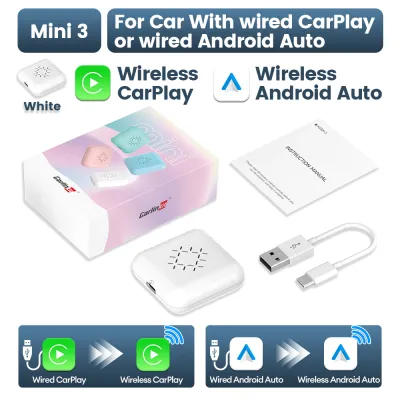
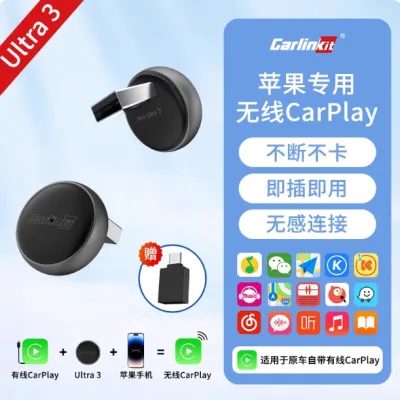
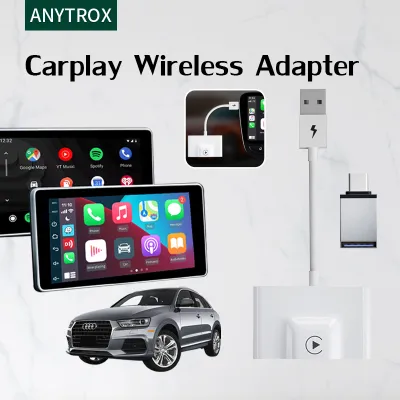
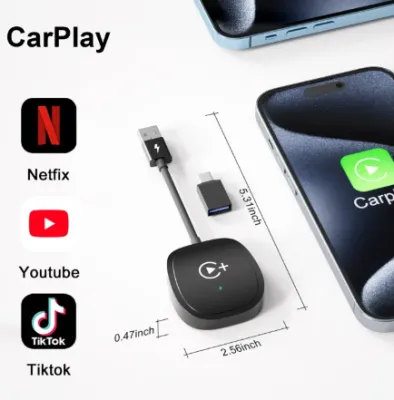
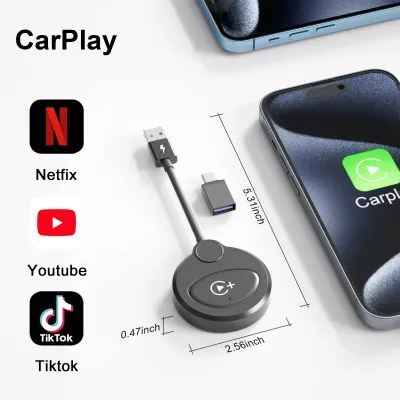
Prices are valid at publication and may change. Please refer to the product page for the latest price.
If your older infotainment system does not have native CarPlay support, you must identify the available physical inputs on your dashboard or center console. Look for USB data ports, auxiliary (AUX) audio inputs, or HDMI ports. It is critical to verify whether your vehicle’s USB ports are data-capable or if they are designed strictly for charging devices. A charge-only port cannot transmit the complex video and touch-input data required to run a CarPlay interface.
Compatibility varies significantly between vehicle makes, models, and production years. Even within the same model generation, manufacturers often update infotainment hardware and software encryption. Always verify your vehicle’s exact model year and head unit specifications against the adapter manufacturer’s official compatibility list. Do not rely solely on generic product category descriptions, as proprietary automotive protocols can block unauthorized third-party hardware.
Choose the Right CarPlay Adapter for Your Vehicle
Wireless CarPlay adapters are the most popular choice for drivers who already have a wired CarPlay system. These compact USB dongles plug directly into the vehicle’s USB data port, converting the wired connection into a wireless Bluetooth and Wi-Fi bridge. They are highly reversible, require no tools to install, and allow your iPhone to remain in your pocket while automatically launching CarPlay when you start the engine.

For older infotainment systems that feature a factory screen but completely lack native CarPlay software, a CarPlay interface module or “AI box” is a viable option. These devices connect to compatible USB data or video inputs and run a virtual CarPlay environment directly on your factory screen. Some advanced interface modules require installing a hardware bypass box behind the dashboard, which intercepts the factory screen’s video feed to display the CarPlay interface.
If your factory head unit is completely locked, lacks usable data ports, or has a low-resolution screen, a standalone portable CarPlay screen is the most practical fallback. These independent displays mount directly to your dashboard or windshield and plug into the vehicle’s 12V accessory power socket. They do not interface with your car’s computer system directly; instead, they display CarPlay on their own screen and route the audio to your car’s speakers via an auxiliary cable or an unused FM radio frequency.
When choosing between these options, consider your technical comfort level and your vehicle’s physical layout. A standalone screen is highly versatile and works in virtually any vehicle, but it adds physical clutter to your dashboard. An interface module offers a clean, factory-integrated look but requires careful verification of your car’s internal wiring and software compatibility.
Step-by-Step Installation and Setup Guide
Before beginning any installation, ensure your vehicle is parked safely in a well-lit area with the handbrake engaged and the ignition turned completely off. If your installation involves mounting a standalone screen or routing cables near the dashboard, plan the layout carefully. Never mount devices or route wires where they might obstruct your view of the road, interfere with physical controls, or block airbag deployment zones.
To install a USB-based wireless adapter or interface box, locate the designated USB data port in your vehicle. Plug the adapter directly into this port using the high-quality cable supplied by the manufacturer. Avoid using cheap aftermarket cables or unpowered USB hubs, as these can degrade data transmission speeds and cause the connection to drop unexpectedly during operation.
Once the physical connection is secure, turn on your vehicle’s ignition to power up the adapter. On your iPhone, navigate to Settings, ensure both Bluetooth and Wi-Fi are enabled, and search for the adapter’s unique network name. Follow the on-screen prompts on your car’s display to complete the pairing process, and select “Use CarPlay” when prompted on your phone to grant the necessary permissions.
For standalone screens or interface modules, you must configure the audio routing to ensure sound plays through your car’s factory speakers. If your car has an auxiliary input, connect a 3.5mm audio cable from the adapter’s audio-out port to the car’s AUX port. If you are using an FM transmitter setup, select an unused, static-heavy radio frequency on your car stereo, and match that exact frequency on the adapter’s settings menu.
Troubleshoot Common Connection and Audio Issues
Wireless CarPlay relies on a high-bandwidth 5GHz Wi-Fi connection for video transmission, while Bluetooth is used only for the initial connection handshake. If you experience frequent disconnects, screen freezing, or lag, check for wireless interference from other devices in the vehicle. Restarting your iPhone and checking the adapter manufacturer’s website for firmware updates can resolve many persistent software bugs.
Audio routing issues can sometimes cause navigation prompts or music to play from your iPhone’s internal speaker instead of the car speakers. To resolve this, open your iPhone’s Control Center while connected to the vehicle, tap the AirPlay icon, and manually select your car’s Bluetooth system or the adapter as the primary audio output. You may also need to adjust the input source on your factory head unit to match the physical connection, such as switching the source to AUX.
If you encounter a black screen or unresponsive touch inputs, verify the integrity of the physical connection. Ensure the USB cable is plugged into a high-speed data port rather than a low-power charging port. Some older factory USB ports do not supply sufficient electrical current to power external adapters; if this is the case, you may need to use a specialized power-boosting Y-cable that draws additional power from a 12V accessory adapter.
When to Stop and Seek Professional Installation
While many CarPlay adapters are simple plug-and-play devices, some integration methods carry inherent risks. Stop the installation immediately if the process requires cutting factory wires, splicing into the vehicle’s main electrical harness, or removing dashboard panels near steering wheel airbag modules. Improper electrical modifications can void your vehicle’s warranty, trigger diagnostic trouble codes, or compromise critical safety systems.
If your chosen adapter solution requires a complex hardware interface module that must be wired directly into the vehicle’s CAN bus system, consult a professional car audio installer in Singapore. Experienced technicians have the specialized trim removal tools, wiring diagrams, and diagnostic equipment necessary to complete the installation safely without damaging delicate dashboard clips or electrical components.
Finally, evaluate whether adapting your existing system is the most practical long-term choice. If your factory head unit’s screen is heavily degraded, unresponsive to touch, or lacks any compatible physical inputs, attempting to force compatibility with adapters may lead to ongoing frustration. In these situations, investing in a professional replacement of the entire head unit with a modern, fully integrated CarPlay receiver is often the most reliable path forward.
Frequently Asked Questions (FAQ)
Do CarPlay adapters drain the car battery when parked?
Most CarPlay adapters draw minimal power, but their impact on your car battery depends entirely on how your vehicle’s USB ports behave when the ignition is turned off. In many modern vehicles, the USB data ports power down completely a few minutes after the engine stops, preventing any battery drain. However, some older vehicles keep their USB ports constantly powered. If your car’s USB port remains active when parked, the adapter will continue to run and search for your phone, which can lead to parasitic battery drain over several days of inactivity. If your ports remain powered, it is safest to unplug the adapter when parking the vehicle for extended periods.
Can I use a CarPlay adapter if my car only has Bluetooth audio?
No, a standard Bluetooth audio connection does not have the bandwidth required to transmit the high-resolution video and touch-control data that Apple CarPlay uses. Bluetooth in older vehicles is designed strictly for basic audio streaming and hands-free calling. To use a CarPlay adapter, your vehicle must have a physical USB data port, an auxiliary input, or a compatible factory wired CarPlay system. If your car only supports Bluetooth audio, a standalone portable CarPlay screen is your best option, as it displays the interface on its own screen while routing the audio through your existing Bluetooth connection.
Community discussion
Share your experience or ask a question. Comments are reviewed before publication.