
Upgrading an older vehicle’s infotainment system with an OttoCast CarPlay adapter does not come down to a single universal solution. Instead, the right choice depends entirely on your vehicle’s existing head unit capabilities, the physical interfaces available in your cabin, and whether your car already supports wired CarPlay. Because these adapters function as bridges between your smartphone and your car’s factory electronics, selecting the correct device requires evaluating how your specific vehicle handles data and power delivery. By understanding these technical baselines, you can avoid compatibility issues and choose an adapter that integrates seamlessly with your daily drive.
Identify Your Car's Existing Infotainment Setup
Before exploring specific adapter models, you must determine the baseline capabilities of your older vehicle’s factory head unit. The most critical factor is whether your original infotainment system already supports wired CarPlay. Many vehicles manufactured after 2015 include this feature, but it requires a physical cable connection to function. If your car does not have native wired CarPlay capability from the factory, standard wireless adapters will not work, and you will need to look at alternative hardware solutions.
Next, examine the physical USB ports in your vehicle’s center console or dashboard. Identify whether the port designated for smartphone integration is a USB-A or USB-C interface. You should also verify the power output specifications of this port by consulting your vehicle owner’s manual. Some older USB ports provide limited electrical current, which may be insufficient to power an external adapter consistently.
Products mentioned in this guide
![✅[SG Ready Stock] OTTOCAST MINI 2 in 1 Wired To Wireless CarPlay Android Auto Adapter USB Stick Wifi Car Accessories](https://img.lazcdn.com/g/p/13aaa7969c2095b57b7752a70cd73b8d.jpg_400x400q80.jpg_.webp)
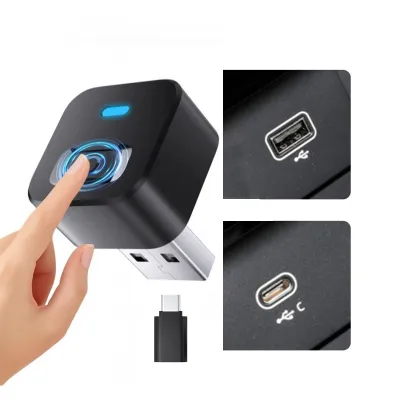
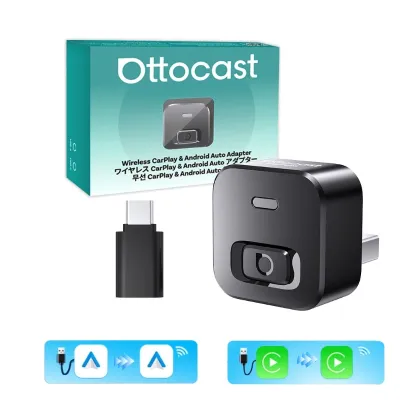
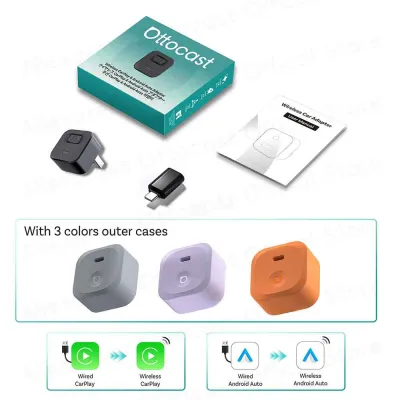
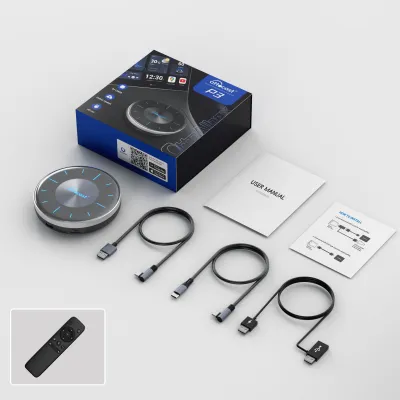
Prices are valid at publication and may change. Please refer to the product page for the latest price.
Finally, review your car’s original documentation or manufacturer updates for any known infotainment system limitations. Some early implementations of wired CarPlay have specific software version requirements or display resolution constraints. Knowing these details beforehand helps you verify whether your head unit can support the data transmission rates required by a wireless adapter.
Match OttoCast Adapter Categories to Your Needs
OttoCast offers different categories of adapters designed to address specific vehicle setups. Understanding these categories allows you to match the hardware to your car’s existing configuration.

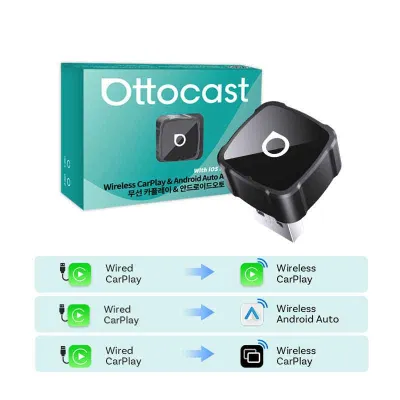
The first category consists of wired-to-wireless adapters. These devices are designed specifically for older cars that already possess native, factory-installed wired CarPlay. The primary function of this adapter is to eliminate the physical cable, converting the existing wired signal into a wireless connection via Bluetooth and Wi-Fi. This option is highly efficient because it relies on the car’s original processing power and does not alter the core user interface or system behavior.
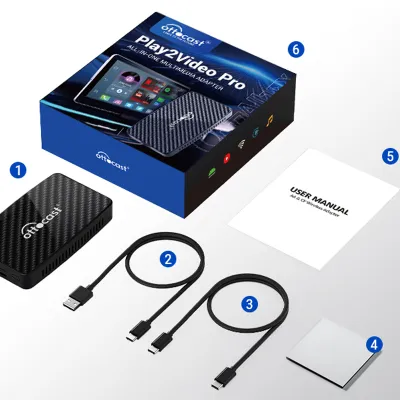
The second category includes AI boxes and multimedia hubs. These are more complex devices designed for vehicles where you want to expand the system’s capabilities beyond standard CarPlay, or for certain aftermarket Android-based head units. These hubs often run their own onboard operating systems, allowing them to run independent applications directly on your vehicle’s screen.
When choosing between these categories, you must evaluate the trade-offs in complexity and hardware reliance. Wired-to-wireless adapters are generally straightforward to set up and maintain, as they simply pass the phone’s signal to the head unit. Multimedia hubs and AI boxes require more internal processing power from the adapter itself, which can introduce additional variables such as heat generation and longer boot times. If your goal is simply to remove the cable from an existing CarPlay setup, a dedicated wired-to-wireless adapter is typically the most direct solution.
Essential Compatibility and Safety Checks Before Buying
To ensure the adapter integrates safely with your vehicle’s electrical and electronic systems, you must perform several checks before making a purchase. Never assume compatibility based solely on a general product category or a broad vehicle model range.
First, cross-reference your exact car make, model, and production year with the manufacturer’s official compatibility list. Vehicle manufacturers often change infotainment hardware mid-cycle, meaning two cars of the same model year might have different head units. Checking the official documentation prevents purchasing an incompatible device.
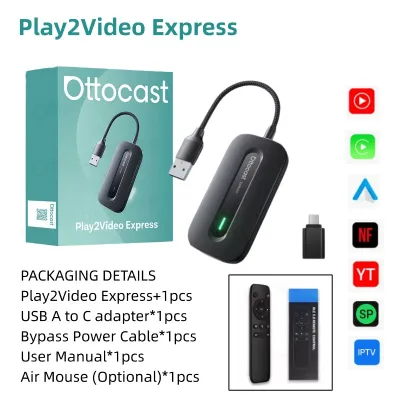
Second, verify the USB power delivery requirements of the adapter against your vehicle’s port output. Wireless adapters require a stable power supply to maintain a constant wireless connection. If your vehicle’s USB port does not supply sufficient power, you may experience frequent connection drops, boot loops, or failure to pair. In some cases, you may need to use an auxiliary power bypass cable or a specialized power stabilizer, as detailed in the product instructions.
Third, confirm how the adapter handles the retention of critical factory features. A proper integration should allow you to continue using your steering wheel controls, rotary dials, backup cameras, and original vehicle settings menus. Review the product specifications to ensure these control pathways remain active when the adapter is connected, preserving your ability to operate the system safely while driving.
Post-Installation Testing and Troubleshooting
Once you have selected and connected your adapter, conducting a systematic post-installation test ensures everything operates reliably before you rely on it for daily navigation.
Begin by testing the system during a short, safe drive where you can observe its behavior without distraction. Pay close attention to audio synchronization during phone calls and media playback, checking for any noticeable lag. Verify that your smartphone’s GPS remains accurate and that the microphone clarity is sufficient for voice commands.
If you encounter frequent disconnections or boot failures, follow a structured troubleshooting process. Start by checking the physical connection; ensure the cable is fully seated in both the adapter and the vehicle’s USB port. Clean the ports of any dust or debris using compressed air. If the issue persists, try resetting the vehicle’s head unit according to the owner’s manual instructions, or clear the Bluetooth and Wi-Fi pairing history on your smartphone before attempting to reconnect.
Always define clear stopping conditions when troubleshooting electronic components. If you experience persistent electrical anomalies, such as the vehicle screen flickering, unusual warning lights on the dashboard, or excessive heat from the adapter, disconnect the device immediately. Do not attempt to modify the vehicle’s wiring or force compatibility. If basic troubleshooting steps fail, consult a qualified professional car audio installer to prevent damaging your vehicle’s electrical system.
Frequently Asked Questions (FAQ)
Will the adapter drain my car battery when the engine is off?
Whether the adapter draws power when the engine is off depends entirely on how your vehicle’s USB ports are wired. In many older cars, the USB ports lose power immediately when the ignition is turned off or when the driver’s door is opened. However, some vehicles keep the USB ports active indefinitely or for a set period after the engine stops. To check this, observe if the status light on the adapter remains illuminated after you lock the vehicle. You should also consult the adapter’s manual to see if it features an automatic low-power standby mode to minimize power draw when no paired phone is detected.
Do I need to update the adapter's firmware for my older car?
Firmware updates are often necessary to maintain stable communication between the adapter and older infotainment systems. Manufacturers release these updates to resolve specific handshake issues and improve compatibility with older vehicle software. To perform an update safely, always follow the manufacturer’s exact instructions, ensuring the adapter is connected to a stable power source during the process. Interrupted power during a firmware update can damage the device’s operating system, rendering it unusable.
Community discussion
Share your experience or ask a question. Comments are reviewed before publication.