
A Carlinkit adapter offers a convenient way to convert a wired infotainment system into a wireless setup, but connection drops, pairing failures, and audio lag can quickly disrupt your drive. These issues typically stem from minor configuration mismatches, power supply fluctuations, or wireless signal interference. Resolving these disruptions requires a systematic approach, starting with identifying the specific symptom and checking physical connections before adjusting software settings.
Identify Your Connection Symptoms
To resolve a connectivity issue efficiently, you must first categorize how the adapter is behaving. A complete pairing failure occurs when the smartphone and the adapter cannot establish an initial handshake, often indicated by a blinking LED status light or a “No Device Connected” message on the screen. This symptom usually points to a fundamental communication barrier, such as incorrect smartphone permissions, outdated Bluetooth cache, or an incompatible USB port.
Frequent mid-drive disconnections present a different challenge. The system works perfectly at the start of a journey but drops randomly after several minutes. This behavior is often linked to power supply deficits from the vehicle’s USB port, physical cable wear, or external wireless interference from toll gantries or high-density Wi-Fi zones.
Products mentioned in this guide
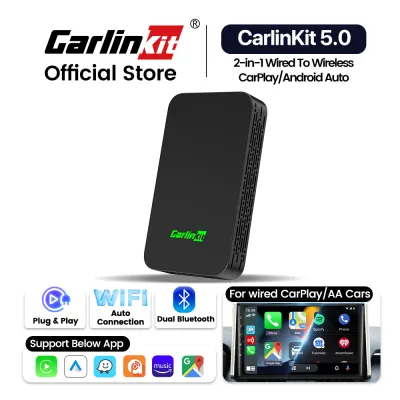
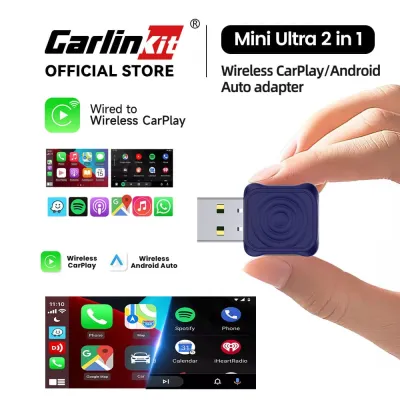
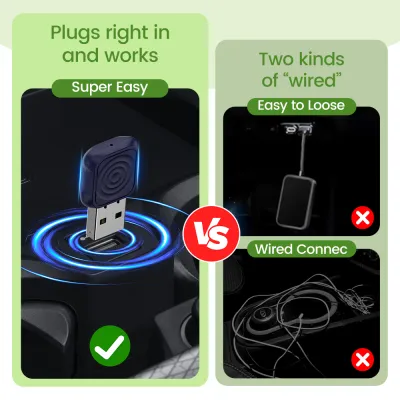
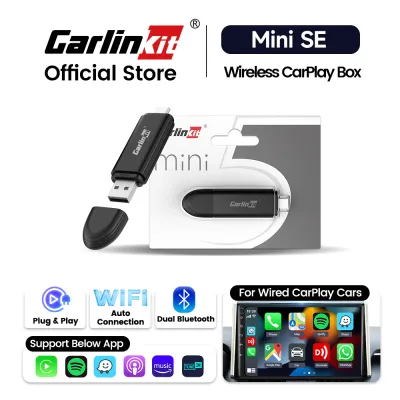
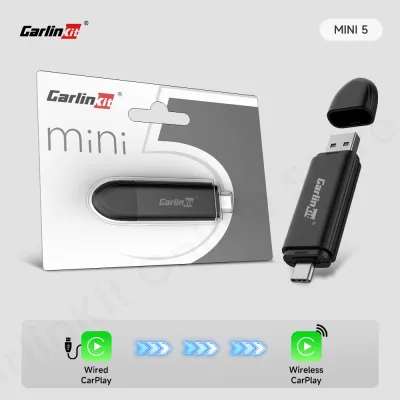
Prices are valid at publication and may change. Please refer to the product page for the latest price.
Audio or video synchronization lag is characterized by a stable connection that suffers from delayed media playback or slow response to steering wheel controls. While a minor delay of one to two seconds is common with wireless adapters, a more pronounced lag usually indicates software buffer issues, outdated firmware, or background processing limitations on the smartphone.
Because vehicle manufacturers use proprietary infotainment systems, the exact behavior of the adapter can vary. A connection issue in one vehicle model might stem from a strict USB power-saving mode, while in another, it could be caused by a conflict with the car’s native Bluetooth system. Always refer to your vehicle’s documentation to understand how the USB ports handle data and power delivery.
Step-by-Step Troubleshooting for Pairing and Connection Failures
When the adapter fails to establish an initial connection, start with the physical connection. The vehicle’s USB port must deliver a stable power supply and support high-speed data transfer. Many modern vehicles feature multiple USB ports, but only one is typically wired directly to the infotainment system for smartphone integration. This port is often marked with a smartphone icon or a USB data symbol. Ensure the adapter is plugged into this specific port, as auxiliary charging ports will not facilitate a connection.

The quality of the cable connecting the adapter to the USB port is equally critical. Using a low-quality, worn, or charging-only cable is a primary cause of connection failures. Always use the original cable supplied in the packaging. If a replacement is necessary, ensure it is a certified high-quality data cable that supports both power delivery and high-speed data transfer.
If the physical connections are secure, clear the wireless pairing records to resolve handshake conflicts. Over time, cached connection data on your smartphone and the car’s head unit can become corrupted. Navigate to your smartphone’s Bluetooth and Wi-Fi settings, locate any entries associated with the adapter or the vehicle, and select the option to forget those devices. Similarly, access the car’s infotainment settings and delete any previously paired smartphones from the device list.
After clearing the pairing records, perform a soft reset of both the adapter and the vehicle’s infotainment system. Unplug the adapter from the USB port, turn off the vehicle’s engine, and open the driver’s door to ensure all accessory power is cut. Wait for the infotainment screen to go completely dark, which indicates the system has shut down. Reconnect the adapter, start the engine, and attempt the pairing process again.
Finally, verify that your smartphone’s system permissions are configured correctly. Wireless adapters rely on Bluetooth for the initial handshake and Wi-Fi for the ongoing data stream. Ensure both Bluetooth and Wi-Fi are enabled on your phone. Additionally, check your smartphone’s settings to confirm that the connection protocol, such as Apple CarPlay or Android Auto, has permission to run in the background and access local network resources.
Resolving Intermittent Drops and Audio Lag
Intermittent disconnections during a drive are frequently caused by wireless interference. Wireless adapters typically operate on the 5 GHz or 2.4 GHz Wi-Fi bands. When driving through areas with dense wireless signals, such as busy urban intersections, electronic toll collection gantries, or areas with high-power public Wi-Fi hotspots, the adapter’s signal can be temporarily disrupted. Adjusting the adapter’s Wi-Fi channel through its backend settings can help find a clearer frequency with less local congestion.
Keeping the adapter’s firmware updated is essential for maintaining compatibility with newer smartphone operating systems and vehicle head units. To check for updates, connect your smartphone to the adapter’s Wi-Fi network while the vehicle is parked. Open a web browser on your phone and enter the IP address specified in the manufacturer’s manual, which is commonly 192.168.50.2. This interface allows you to view the current firmware version, check for official updates, and adjust advanced settings like audio delay buffers.
Smartphone background processes can also impact connection stability. If your phone is running multiple resource-heavy applications, or if it is in a low-power saving mode, the operating system may restrict background data transfer to the adapter. Disable battery optimization for the connection services and ensure your phone is not in a low-power mode during use. This ensures the phone allocates sufficient processing power to maintain a stable wireless stream.
Physical vibrations from driving can gradually loosen the USB connection over time. If the adapter drops connection when driving over rough roads or speed bumps, inspect the physical tightness of the USB port. A loose port or a worn cable connector can cause momentary power interruptions, forcing the adapter to reboot. If the port itself feels loose, consult a qualified automotive technician to inspect the vehicle’s USB assembly.
When to Contact Support or Replace the Adapter
While most connectivity issues can be resolved through software adjustments and cable checks, hardware limitations or failures do occur. Inspect the physical condition of the adapter regularly. If the device feels excessively hot to the touch, emits an unusual odor, or shows visible signs of warping or port damage, unplug it immediately. Continuing to use a physically damaged electronic device can pose safety risks to your vehicle’s electrical system.
Firmware updates must be handled with caution. If the adapter becomes completely unresponsive during an update, do not attempt to force a reset by repeatedly unplugging and plugging it back in. If the status light remains off or stays solid red indefinitely after an update attempt, the firmware may have corrupted. In such cases, contact the manufacturer’s official support channel rather than attempting to open the casing or perform manual hardware modifications.
Before reaching out to official support, gather all necessary technical details to expedite the troubleshooting process. Prepare the exact model number of your adapter, the make, model, and year of your vehicle, and the current operating system version of your smartphone. Having this information ready allows support technicians to identify known compatibility issues or provide specific configuration steps for your vehicle.
Do not attempt to open the adapter’s housing to perform internal repairs. These devices contain sensitive surface-mount components that cannot be serviced without specialized equipment. Attempting a self-repair will void any remaining warranty and may lead to further damage. If the adapter is determined to have a hardware defect and is within its warranty period, seek a replacement through the official seller or authorized distributor.
Frequently Asked Questions (FAQ)
Does Carlinkit drain my car battery when the engine is off?
Whether the adapter draws power when the engine is off depends entirely on your vehicle’s USB port configuration. Some vehicles cut power to all USB ports immediately when the ignition is turned off, while others keep the ports active for a set period or indefinitely. If your vehicle’s USB port remains powered, the adapter will continue to draw a small amount of current to maintain its standby state.
To prevent unnecessary battery drain, consult your vehicle’s owner manual to understand how the accessory power ports behave. You can also observe the adapter’s LED status light after locking the vehicle; if the light remains on after several minutes, the port is still active. If your vehicle keeps the USB ports powered continuously, it is best practice to unplug the adapter when parking the car for extended periods.
Can I use a third-party USB cable with my Carlinkit adapter?
Yes, you can use a third-party USB cable, but it must support both high-speed data transfer and adequate power delivery, rather than just basic charging. Many standard charging cables lack the internal shielding and data wires necessary to maintain a stable connection between the adapter and the vehicle’s head unit, which can lead to frequent disconnections or pairing failures.
When selecting a replacement cable, choose a certified high-quality cable from a reputable manufacturer. Keep the cable length as short as practical, as longer cables can experience signal degradation and voltage drops. Using the cable provided in the original packaging is always recommended, but if a replacement is necessary, verifying the data transfer specifications beforehand will help ensure stable performance.
Community discussion
Share your experience or ask a question. Comments are reviewed before publication.