
Upgrading an older car with wired CarPlay to a wireless setup is one of the most practical convenience upgrades you can make. The convenience of keeping your phone in your pocket while your navigation and music automatically boot up on the dashboard is undeniable. However, navigating the lineup of OttoCast adapters requires understanding your vehicle’s existing hardware and your specific smartphone ecosystem. Choosing the right model depends on whether you want a straightforward iOS-to-CarPlay bridge, an Android-to-CarPlay translation layer, or a multi-device system that accommodates different phones. This guide breaks down the essential pre-purchase checks, compares functional adapter categories, and provides step-by-step installation and troubleshooting advice to ensure a stable transition to wireless connectivity.
What to Check Before Buying an OttoCast Adapter
Before purchasing any wireless adapter, you must verify that your vehicle meets the strict technical prerequisites required for these devices to function. The most critical factor is that your car must already have a factory-installed or aftermarket wired CarPlay system. An OttoCast adapter is not a standalone infotainment system; it acts as a bridge that converts an existing wired CarPlay connection into a wireless signal. If your vehicle’s head unit does not support wired CarPlay natively, plugging in an adapter will not add the feature. You can verify your system’s compatibility by plugging your phone directly into the car’s data port using an official cable; if the CarPlay interface does not launch on your screen, an adapter will not function.
The model year of your car and the type of head unit installed also play a significant role in compatibility and performance. While most vehicles manufactured after 2016 with factory infotainment systems support wired CarPlay, some older models or specific aftermarket head units may have firmware limitations. These limitations can affect the stability of the wireless connection or prevent the adapter from booting entirely. Always verify your specific vehicle model, production year, interface compatibility, mounting physical dimensions, and safety impact directly from the official product documentation and your vehicle’s owner manual; never assume compatibility based solely on broad category terms.
Products mentioned in this guide
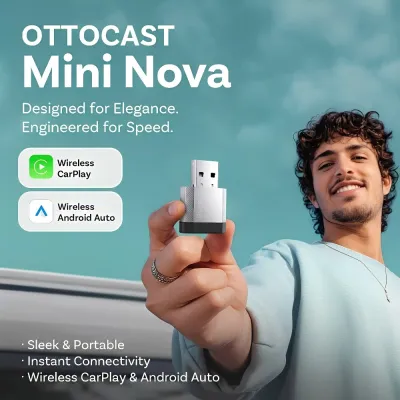
![✅[SG Ready Stock] OTTOCAST MINI 2 in 1 Wired To Wireless CarPlay Android Auto Adapter USB Stick Wifi Car Accessories](https://img.lazcdn.com/g/p/13aaa7969c2095b57b7752a70cd73b8d.jpg_400x400q80.jpg_.webp)
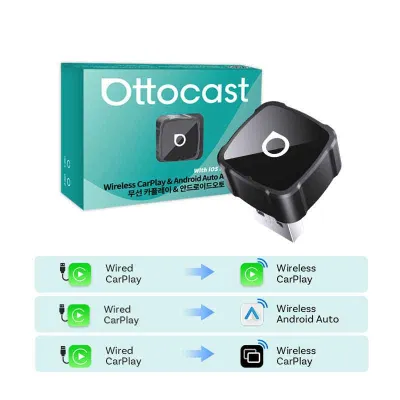
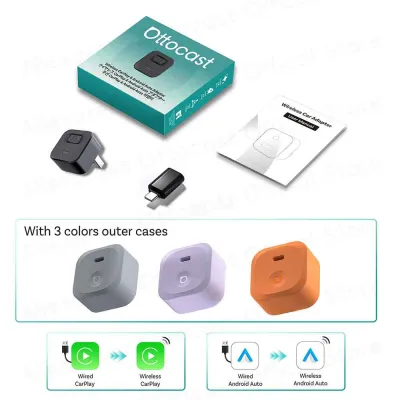
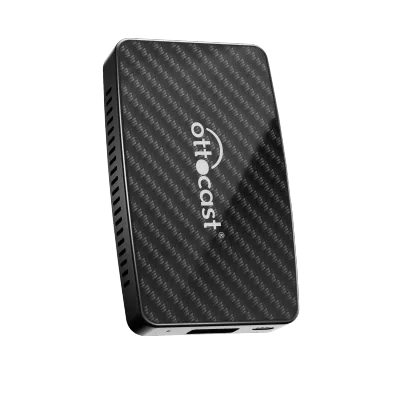
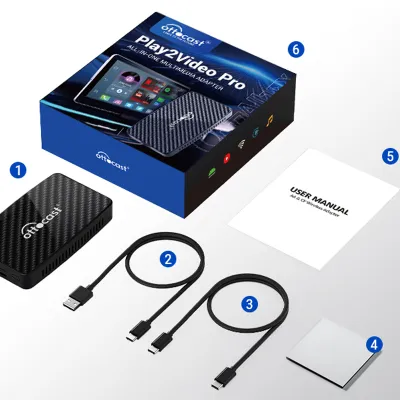
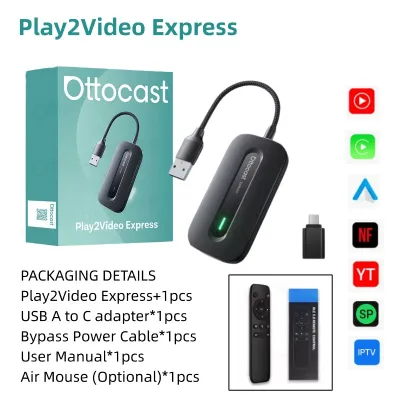
Prices are valid at publication and may change. Please refer to the product page for the latest price.
Understanding protocol differences is equally vital to avoid purchasing the wrong hardware. Some adapters are designed exclusively for Apple CarPlay, while others support Android Auto, and some premium models offer dual-system conversion. It is a common misconception that any wireless adapter will work with any smartphone. For instance, if you own an Android phone but your car only has a wired Apple CarPlay protocol, you need a specific conversion adapter that translates the Android Auto signal from your phone into a CarPlay-compatible format that your car’s head unit can understand. Using an iOS-only adapter with an Android device will result in a complete lack of connectivity.
Finally, you must evaluate your vehicle’s USB port power delivery. Wireless adapters require a stable and continuous power supply to maintain high-bandwidth Wi-Fi and Bluetooth connections. Most vehicle data ports provide a standard output of 5V/1A, which is generally sufficient for standard adapters. However, some older head units or worn USB ports may drop below this threshold, especially during hot weather or high-load situations. If your adapter frequently restarts or fails to pair, you may need to verify the port’s power output or use a dedicated Y-cable that draws auxiliary power from a 12V socket while maintaining the data connection to the head unit.
Which OttoCast Model Fits Your Upgrade Needs?
To select the most suitable OttoCast model, you should categorize your requirements by your primary smartphone ecosystem and the specific way you intend to use your infotainment system. Rather than focusing solely on specific, rapidly changing model numbers, it is more effective to evaluate the functional categories of adapters. This approach ensures you find a device that matches your daily driving habits, whether you are a solo iPhone user, an Android enthusiast driving a CarPlay-only vehicle, or part of a multi-device household sharing a single car.

For Pure Wireless CarPlay Connectivity
If you are an iPhone user whose vehicle is already equipped with wired CarPlay, your primary goal is likely to eliminate the daily hassle of plugging in a physical cable. For this scenario, a dedicated “Wired to Wireless CarPlay” adapter, such as the OttoCast U2-Air series or its equivalent basic dongles, is the most efficient choice. These devices are engineered with a singular focus: to establish a fast, stable, and low-latency wireless bridge between your iPhone and your car’s native CarPlay system.
Connection Stability: By utilizing a dedicated 5 GHz Wi-Fi link alongside Bluetooth handshaking, these adapters maintain a robust connection that resists interference in urban environments.
Boot Speed: Because there is no protocol translation occurring, the startup sequence is highly optimized, often loading the CarPlay interface on your screen by the time you exit your parking space.
Latency and Responsiveness: Audio playback and map navigation remain highly responsive, with minimal delay when using steering wheel controls or touchscreen inputs.
Before purchasing, check the manufacturer’s compatibility list for your specific car brand. Some European vehicle brands or older Japanese models may have unique USB handshake protocols that require a firmware update before the adapter can establish a stable connection. Most manufacturers provide a companion smartphone application that allows you to perform these firmware updates and adjust connection parameters if you experience initial pairing difficulties.
For Switching from CarPlay to Android Auto
A common challenge for Android users is driving a vehicle that natively supports only wired Apple CarPlay. This scenario often occurs in older vehicles where the manufacturer did not license Android Auto, or in certain aftermarket setups. To bridge this gap, you will need a specialized “CarPlay to Wireless Android Auto” adapter, often referred to in product lineups as the OttoCast P-series or specialized AI boxes.
Protocol Translation: The adapter acts as a middleman, converting the Android Auto signal from your phone into a CarPlay-compliant stream that the vehicle’s head unit can read.
Processing Overhead: Because of the active translation, these devices require more processing power, which can lead to slightly warmer operating temperatures and slightly longer boot times.
Device Compatibility: It is crucial to verify that your Android phone runs a compatible operating system version (typically Android 11 or newer) to ensure a stable wireless handshake.
As a result of this processing overhead, you may experience slightly longer boot times when starting your car, and the interface may have a marginal increase in latency compared to a native connection. When choosing an adapter in this category, it is critical to verify that the device supports your specific Android version and phone model. While modern Android devices running Android 11 or higher generally have broad compatibility, older operating systems or highly customized manufacturer skins may require specific configuration adjustments to maintain a stable wireless link.
For Multi-Device and Dual-System Support
For households where multiple drivers share a single vehicle using different smartphone ecosystems, a single-protocol adapter can become a source of frustration. In this situation, a dual-system adapter that supports both wireless CarPlay and wireless Android Auto is the most practical solution. These premium models are designed to detect which device is attempting to connect and automatically configure the appropriate wireless protocol.
Auto-Switching Convenience: These adapters automatically detect which paired phone is in range and initiate the corresponding wireless protocol, making them ideal for shared family vehicles.
Connection Prioritization: Most dual-system models allow you to configure a primary device to prevent the system from pairing with a passenger’s phone when the primary driver is operating the vehicle.
Hardware Complexity: The dual-protocol architecture requires more complex internal firmware, which typically commands a higher price point and may require more frequent firmware updates.
However, this advanced functionality comes with certain trade-offs. Dual-system adapters are more complex, often carrying a higher price point in the market. They also require careful initial setup to ensure that the Bluetooth and Wi-Fi profiles of both phones do not conflict. If you frequently switch drivers, you should verify whether the adapter supports background switching without requiring you to manually disconnect the active phone from its settings menu, as some lower-tier dual-system models still require a manual reset to switch between iOS and Android modes.
How to Install and Pair Your OttoCast Adapter
Installing a wireless CarPlay adapter is designed to be a straightforward, non-invasive process, but following the correct sequence is essential to establish a reliable connection.
First, locate your vehicle’s primary data USB port. This port is typically located in the center console, dashboard, or armrest, and is often distinguished by a smartphone icon or a CarPlay/Android Auto logo. Avoid plugging the adapter into charge-only USB ports (often marked with a lightning bolt or “Charge Only” label), as these ports do not have the data lines necessary to communicate with your head unit. If your vehicle has multiple data ports, consult your original-vehicle instructions to identify which port is designated as the primary interface for smartphone integration.
Once the adapter is plugged into the correct port, wait for the status light on the device to turn on, indicating it is receiving power. On your smartphone, ensure that both Bluetooth and Wi-Fi are enabled. Navigate to your phone’s Bluetooth settings and look for the adapter’s broadcast name, which is typically listed in the product’s quick-start guide or displayed on your car’s screen. Initiate the pairing process. During this step, your phone will prompt you to allow CarPlay or Android Auto access; you must accept these permissions for the system to function. Once the Bluetooth handshake is complete, the adapter will automatically establish a secure, high-bandwidth Wi-Fi connection with your phone to handle the actual data transmission. Do not manually connect to the adapter’s Wi-Fi network unless instructed by the setup application, as this can disrupt the automatic pairing sequence.
Before your first drive, it is highly recommended to perform a firmware check. Connect the adapter to a stable Wi-Fi network—such as your home network if parked in range, or via your phone’s personal hotspot—and access the adapter’s management interface. This is typically done by opening a web browser on your connected phone and entering a specific IP address (such as 192.168.1.101, though you must verify the exact address in your product’s documentation). If a firmware update is available, apply it immediately. Manufacturers frequently release updates to resolve compatibility issues with newly updated phone operating systems and specific car head units.
Proper cable management is the final step to ensure long-term reliability and a clean cabin aesthetic. Most adapters come with short USB-A and USB-C cables. Secure the adapter in a location where it will not be subjected to physical impact or excessive vibration, such as inside a center console compartment or tucked neatly alongside the gear selector. Avoid placing the adapter in areas where it might be pinched by moving seats, glove box hinges, or center console lids. If you need to route the cable through tight gaps, ensure you do not bend the cable sharply, as internal wire damage can lead to intermittent connection drops.
If your vehicle’s USB ports require custom wiring modifications, or if you plan to hardwire a dedicated power supply from the fuse box to resolve power delivery issues, always consult your original-vehicle electrical diagrams. Such modifications represent a clear safety boundary; unauthorized electrical work can void warranties or compromise vehicle safety systems. Always seek qualified installation from a certified auto electrician before proceeding with any custom electrical modifications.
Troubleshooting Connection and Audio Delays
While wireless adapters offer significant convenience, they rely on complex wireless handshakes and data compression, which can occasionally lead to operational issues. Understanding how to diagnose and resolve these common pain points can save you from unnecessary frustration.
One of the most frequent complaints with wireless adapters is audio lag. Because the audio signal must be compressed by your phone, transmitted over Wi-Fi, decoded by the adapter, and then processed by your car’s head unit, a slight delay of 1 to 2 seconds is technically inherent to almost all wireless CarPlay systems. This delay is most noticeable when skipping tracks or during phone calls. If the lag becomes excessive (greater than 3 seconds), check if your head unit or media application has an audio synchronization or delay-compensation setting. Additionally, keeping the adapter’s firmware updated to the latest version often includes optimizations that reduce processing latency.
Frequent connection drops or failure to connect upon starting the vehicle are typically caused by wireless interference or corrupted pairing profiles. If your adapter drops the connection in specific geographical areas, it may be due to external Wi-Fi interference from high-voltage power lines, toll gantries, or dense wireless networks. If the drops occur randomly, the best solution is to perform a clean reset. Delete the adapter from your phone’s Bluetooth and Wi-Fi saved networks, clear the paired devices list from your car’s head unit, reset the adapter to factory settings via its web interface, and then perform the pairing process from scratch.
Microphone issues, such as low volume or echo during calls, usually stem from a conflict between your phone’s internal microphone and the vehicle’s native microphone system. By default, the adapter should instruct the phone to use the car’s built-in microphone and steering wheel controls. If callers report that they cannot hear you, verify in your phone’s call audio routing settings that the active source is set to CarPlay or the vehicle’s Bluetooth system. Some aftermarket head units may require you to manually adjust the microphone gain settings within the head unit’s system menu to balance the audio levels.
Thermal management is another critical factor, particularly in warm tropical climates like Singapore’s. Wireless adapters contain compact processors that generate heat during continuous operation. If an adapter is placed in direct sunlight on the dashboard or enclosed in a tightly sealed, unventilated glove compartment, it can overheat, leading to thermal throttling, lag, or sudden shutdowns. To prevent this, mount the adapter in a shaded area with adequate airflow, such as under the dashboard or in an open storage tray, and avoid covering it with papers, cloths, or other insulating materials.
Frequently Asked Questions (FAQ)
Will an OttoCast adapter drain my car battery when parked?
Whether an OttoCast adapter drains your car battery depends entirely on how your vehicle’s USB ports are wired. In many vehicles, the USB data ports lose power immediately when the ignition is turned off or when the driver’s door is opened. In these cars, the adapter shuts down completely and poses zero risk of battery drain. However, some vehicles keep their USB ports powered continuously or for an extended period (sometimes up to several hours) after the car is locked. Because these adapters draw a small amount of residual current to maintain standby readiness, prolonged parking in a vehicle with constantly powered USB ports could gradually drain an older or weak car battery. If you observe that the adapter’s status light remains illuminated long after you have turned off the engine, it is safest to unplug the device when parking for extended periods, or consult a professional auto electrician to configure a USB port that switches off with the ignition.
Can I use the adapter with an aftermarket Android head unit?
OttoCast adapters are specifically engineered to work with head units that have an existing, native wired CarPlay protocol. If your aftermarket head unit is a standard system from a major manufacturer that includes wired CarPlay support, the adapter should function normally. However, if your aftermarket unit is an open-system Android tablet style head unit (often running a modified version of mobile Android rather than dedicated car software), a standard USB conversion dongle may not be compatible. These open Android head units usually do not have the native CarPlay receiver software installed. For these specific aftermarket systems, you generally require a different type of integration, such as a specialized USB receiver dongle that paired with a dedicated application installed directly onto the head unit’s operating system. Always verify the operating system and input specifications of your aftermarket head unit before selecting an adapter.
Does wireless CarPlay affect audio quality compared to wired?
For the vast majority of users, the difference in audio quality between wired and wireless CarPlay is virtually imperceptible. Wireless CarPlay utilizes a high-bandwidth 5 GHz Wi-Fi connection to transmit audio data, which provides significantly more bandwidth than standard Bluetooth audio streaming. This allows the system to transmit uncompressed or high-bitrate audio formats without difficulty. However, because the audio must still undergo wireless packet transmission and decoding by the adapter, some ultra-high-resolution lossless audio files may experience minor compression depending on your head unit’s specific decoding capabilities and the adapter’s internal digital-to-analog processing. If you are an audiophile using premium aftermarket speakers and amplifiers, you may notice a very subtle difference in dynamic range during critical listening, but for standard streaming services and daily driving, the audio quality remains excellent and highly stable.
Community discussion
Share your experience or ask a question. Comments are reviewed before publication.